12 posts tagged with "Studies"

View All Tags

Assist Analyzes Your Study Data

Catalyst Assist can now answer questions about the data in your study — counts, averages, distributions, and filtered breakdowns — by querying the dataset directly.

What's included

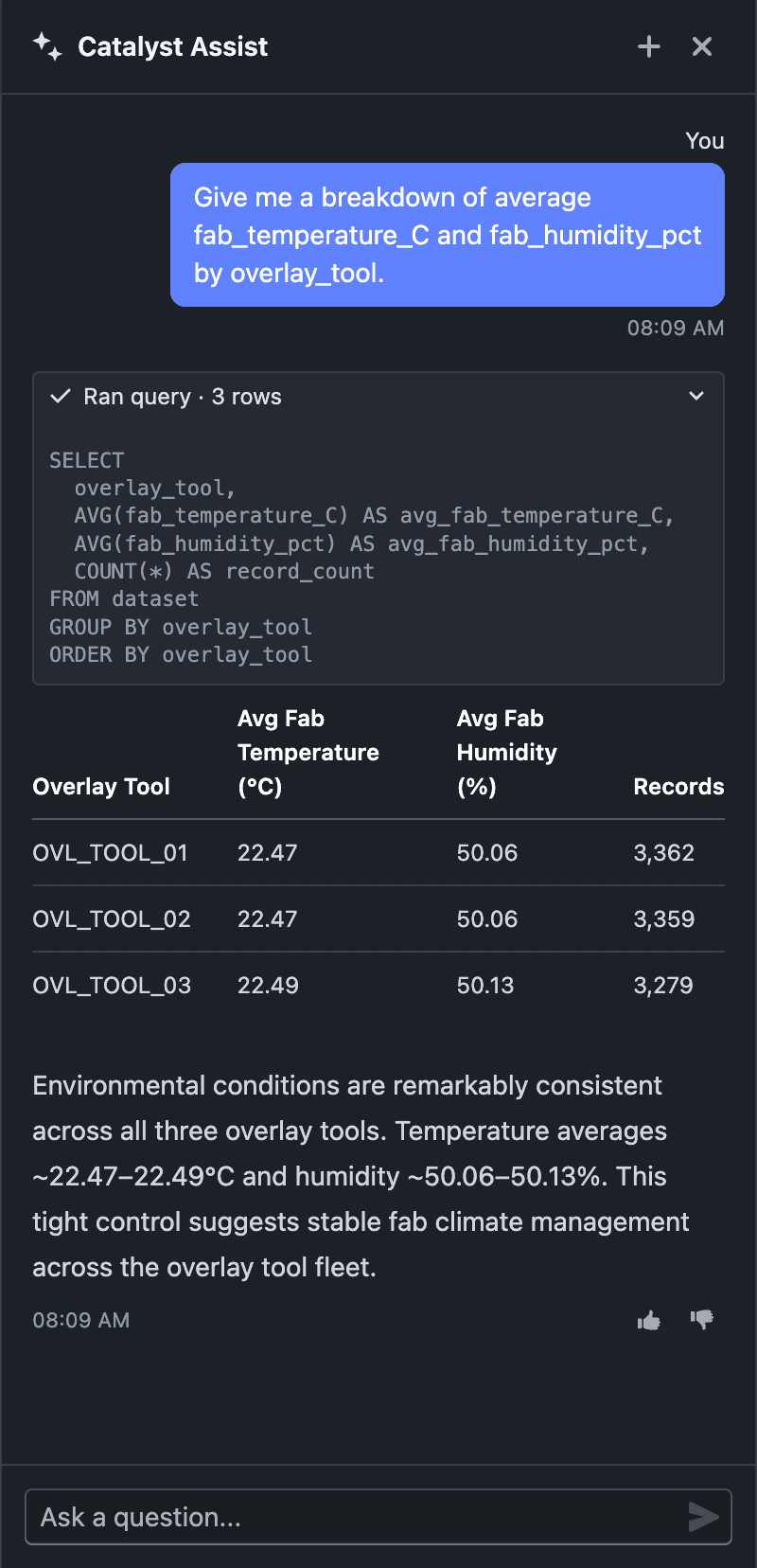
Catalyst Assist answering a data question with figures and a table

  • Ask data questions in natural language — "average overlay error by tool?", "how many wafers failed process control?", "distribution of risk score by lot" — and Assist queries your study dataset to answer
  • Answers are computed from your actual data, returned as markdown tables, with a brief takeaway drawn from the results
  • Date and duration math is supported — group by year, compare timestamps, measure elapsed time between events
  • Platform and feature questions still work exactly as before — Assist picks the right mode for each question

Notes

  • Data answers come only from your dataset — Assist never invents, estimates, or extrapolates figures
  • Data questions are available when Assist is opened from within a study
  • Data queries run on the study's worker, so it must be provisioned and active; otherwise Assist still answers platform and feature questions but can't query the dataset
  • AI responses may not always be accurate. If you receive an unexpected result, let us know with the thumbs up/down on the response, or share it via Support → Contact Support
  • This is an incremental update during beta
Sigma-Based PCA Clusters

Create PCA clusters from sigma bands and compare only clusters that contain points.

What's included

Create clusters from sigma bands

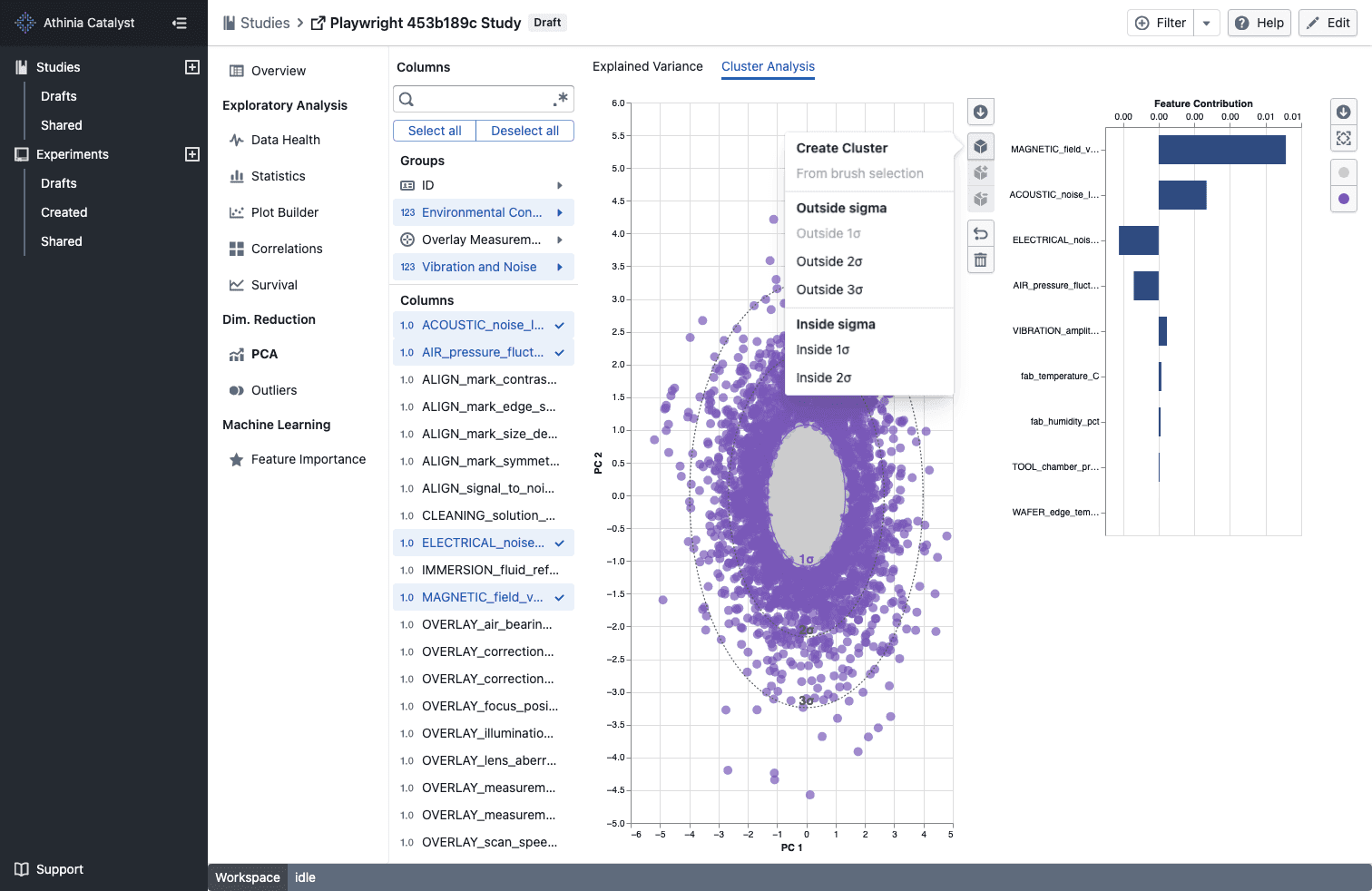
Sigma-based PCA clusters

  • Open the cluster menu in PCA -> Cluster Analysis to create ready-made Inside nσ and Outside nσ clusters without drawing a brush
  • Sigma-based clusters automatically assign matching points as soon as the PCA view finishes loading
  • The matching sigma contour adopts the cluster color so you can see the selected boundary at a glance

Compare populated clusters only

  • Cluster comparison menus now show only clusters that currently contain points
  • If a selected cluster becomes empty or is removed, the comparison updates to the next valid populated cluster automatically

Notes

  • Sigma-based clusters are stored with your other PCA cluster selections for that study
  • Outside nσ options are available for every displayed sigma band, while Inside nσ options are available for the inner bands
  • Empty clusters are excluded from comparison choices until they contain points

Exclude Columns in Data Health & Column Settings

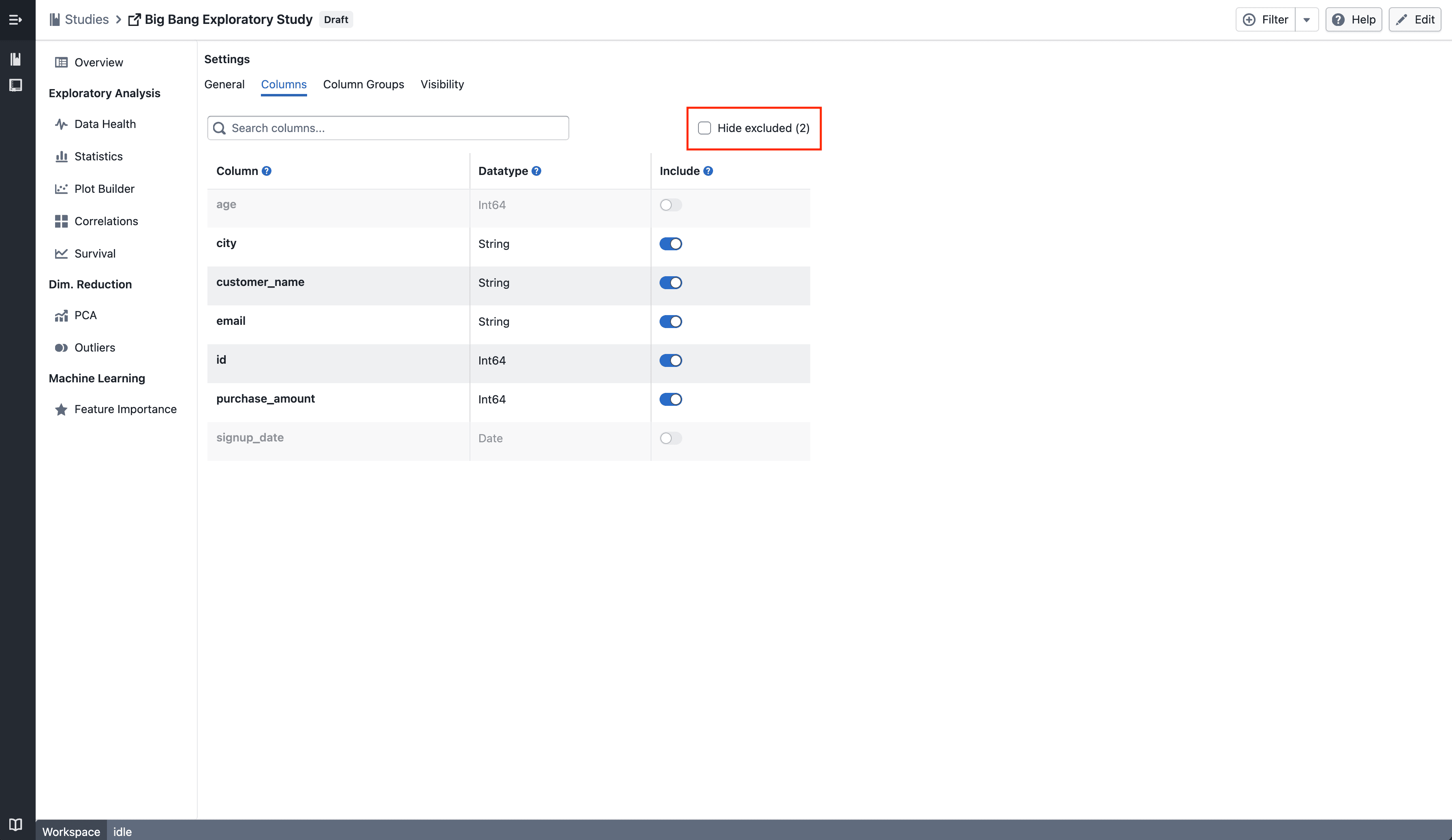
Excluded columns are now hidden by default in the Data Health summary, and both the Data Health and Column Settings pages show a consistent "Hide excluded (N)" filter.

What's included

Standardized "Exclude" action

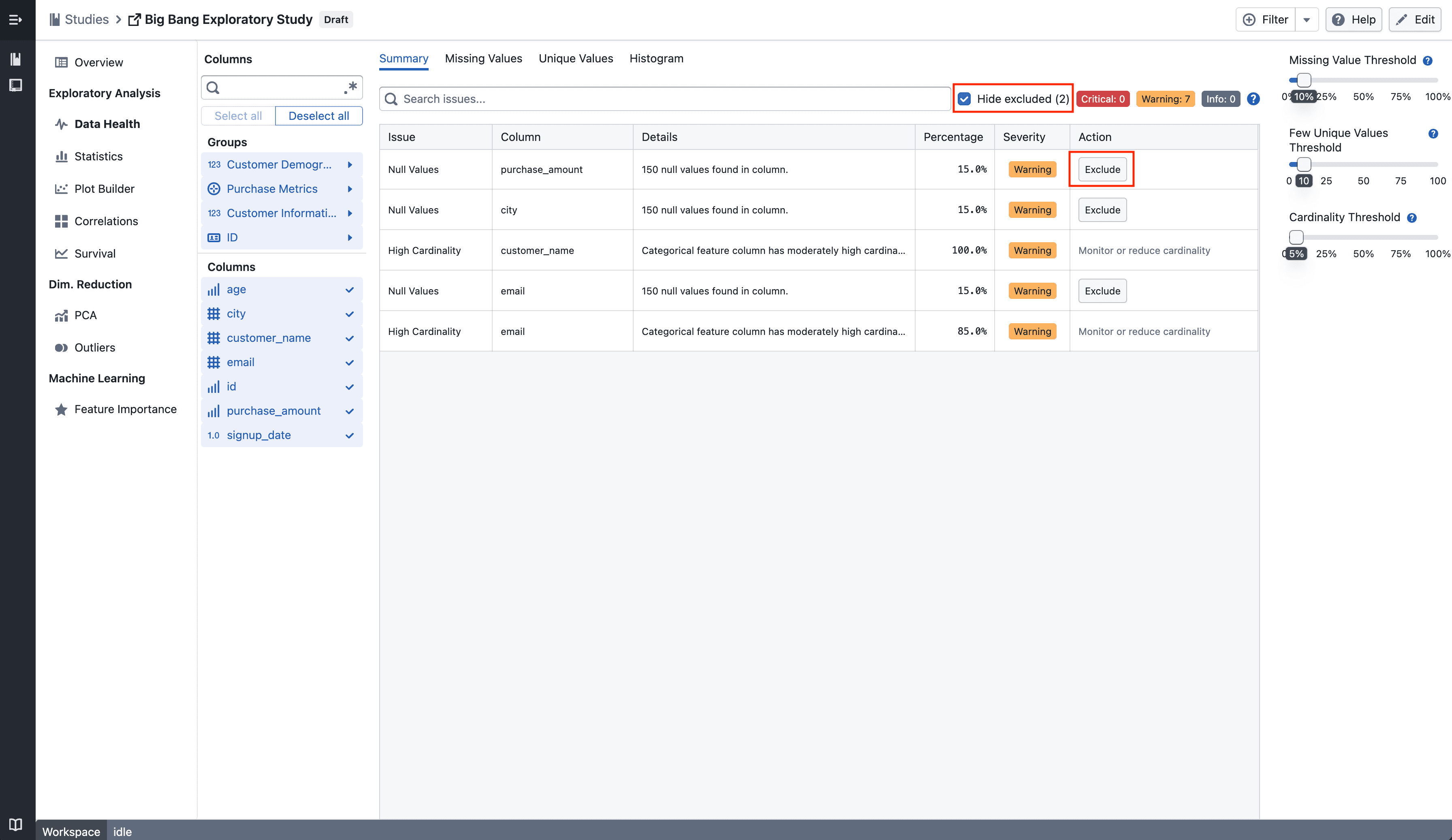
Summary

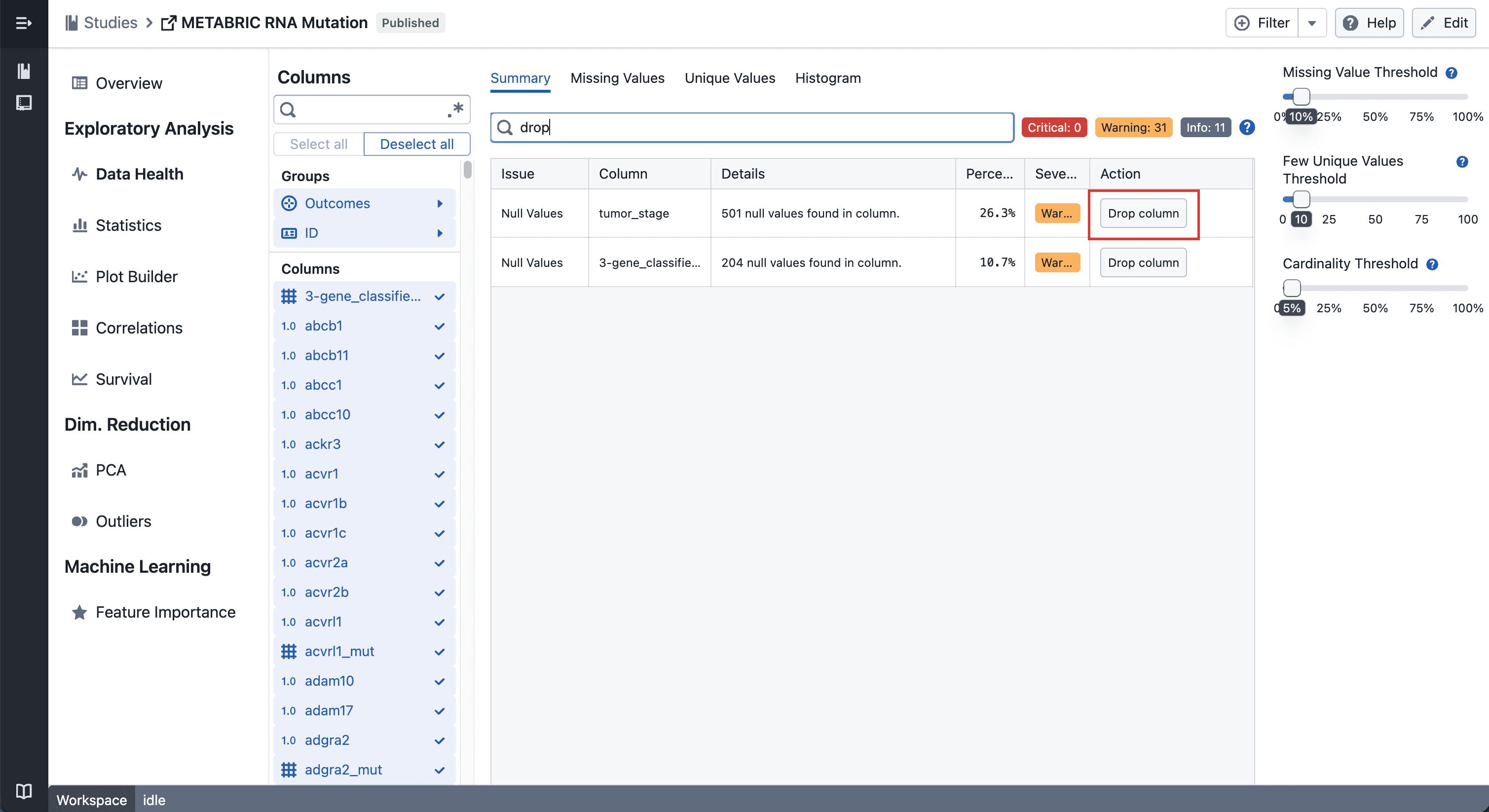
The action previously labeled Drop column in the Data Health table is now labeled Exclude, consistent with the terminology used in Column Settings. Excluded columns (visibility offs) are now hidden by default in the Data Health summary table. A Hide excluded (N) checkbox appears in the toolbar whenever there are excluded columns, allowing you to reveal them when needed.

Consistent filter in Column Settings

Column Edit

The same Hide excluded (N) checkbox — showing the count of excluded columns — is now displayed in the Column Settings page, matching the behaviour in Data Health.


Notes

  • Excluded columns are hidden, not deleted — your underlying data remains unchanged
  • The count in the checkbox reflects how many columns currently have visibility turned off
  • If you notice any unexpected behavior, please share steps to reproduce

AI Summary for Plot Builder

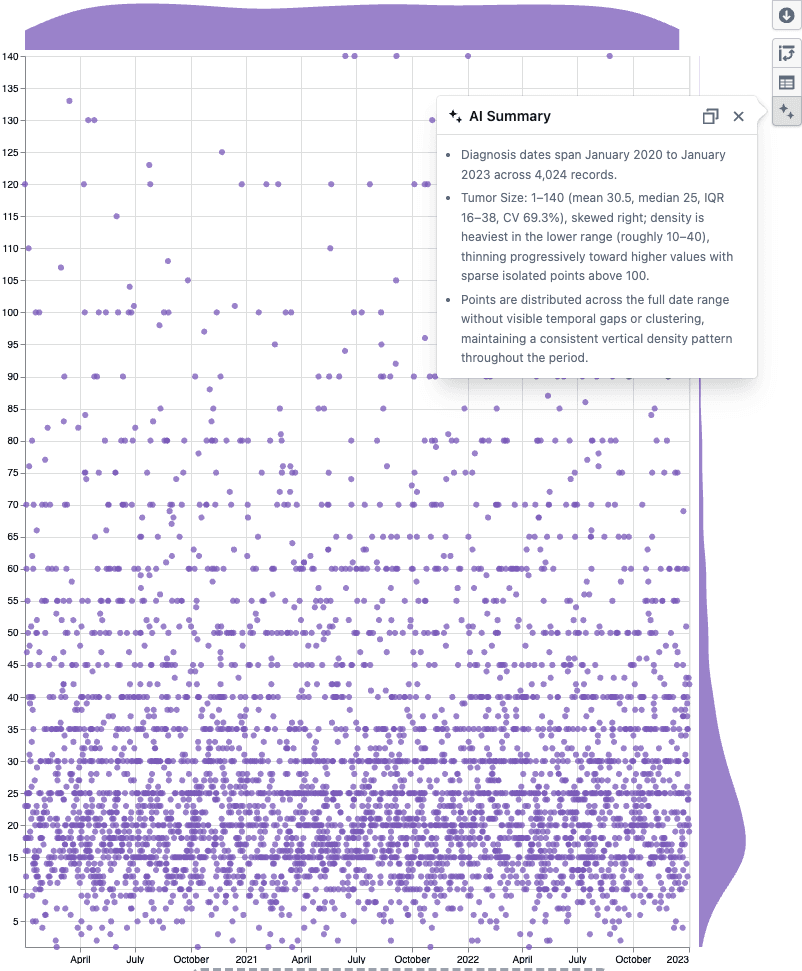
Instantly understand any plot with an AI-generated summary — powered by an LLM with vision.

What's included

How it works

AI Summary popover on a scatter plot

  • Click the AI Summary button in the Plot Builder toolbar
  • A vision-enabled LLM reads the plot statistics and sees the chart, then returns bullet points covering distributions, group breakdowns, data quality issues, and visual patterns like clusters or outliers
  • Hit copy to paste the summary into a report or analysis note

Notes

  • Works with scatter plots, box plots, and heatmaps
  • The summary is factual only — the LLM does not assess or make recommendations
  • If you notice any unexpected behavior, please share steps to reproduce

Column Management

Rename and include or exclude columns across your study from Column Management.

What's included

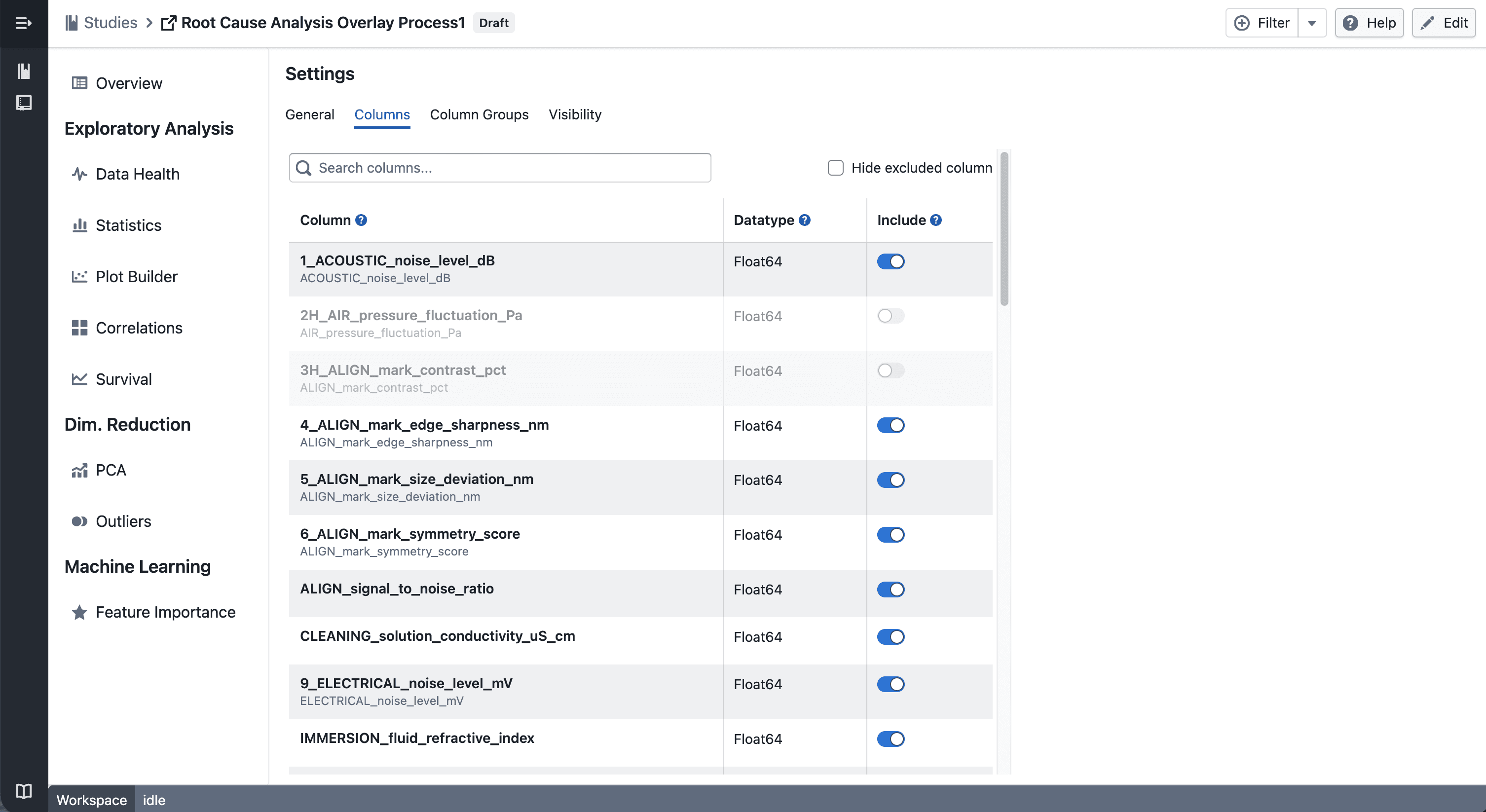
Column Management

Column Management

You can now manage columns from Edit → Columns.

  • Exclude columns to remove them from all views in the study — including plots, statistics, and column groups
  • Include columns again at any time to restore them across the study

Update Column

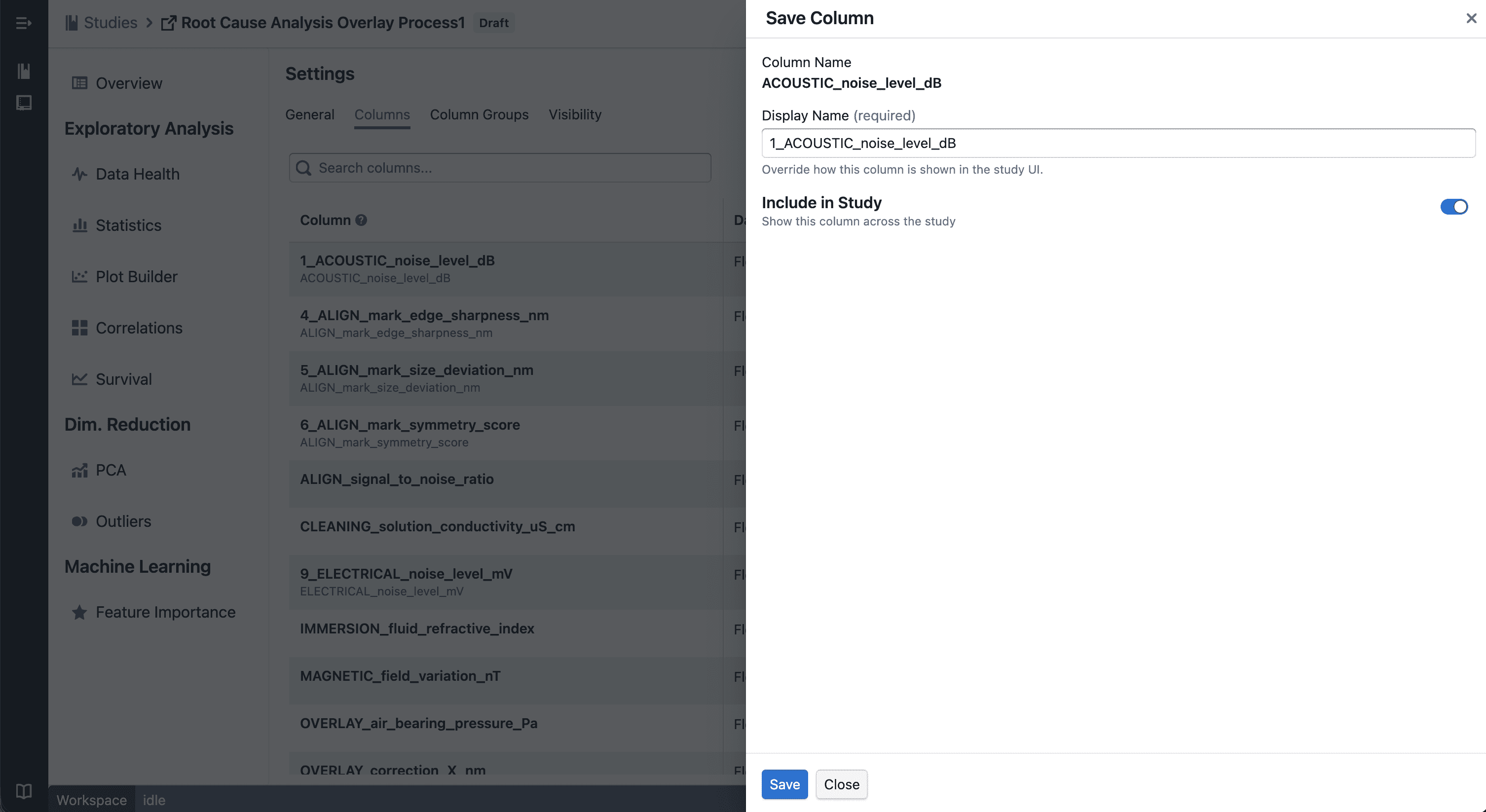
Drawer to update

  • Rename columns to use more meaningful display names across your study
  • Changes are applied consistently across all views

Notes

  • Excluded columns are hidden, not deleted — your underlying data remains unchanged
  • Renaming affects display only and does not modify raw data
  • If you notice any unexpected behavior, please share steps to reproduce

Drop Column in Data Health

You can now drop columns directly from the Data Health table. Dropped columns are hidden across all study views and the change is saved automatically.

What's included

Drop Column

Drop Column Button

Click the drop button on any row in the Data Health table to hide that column across all views in the study — plots, statistics, and column groups included.

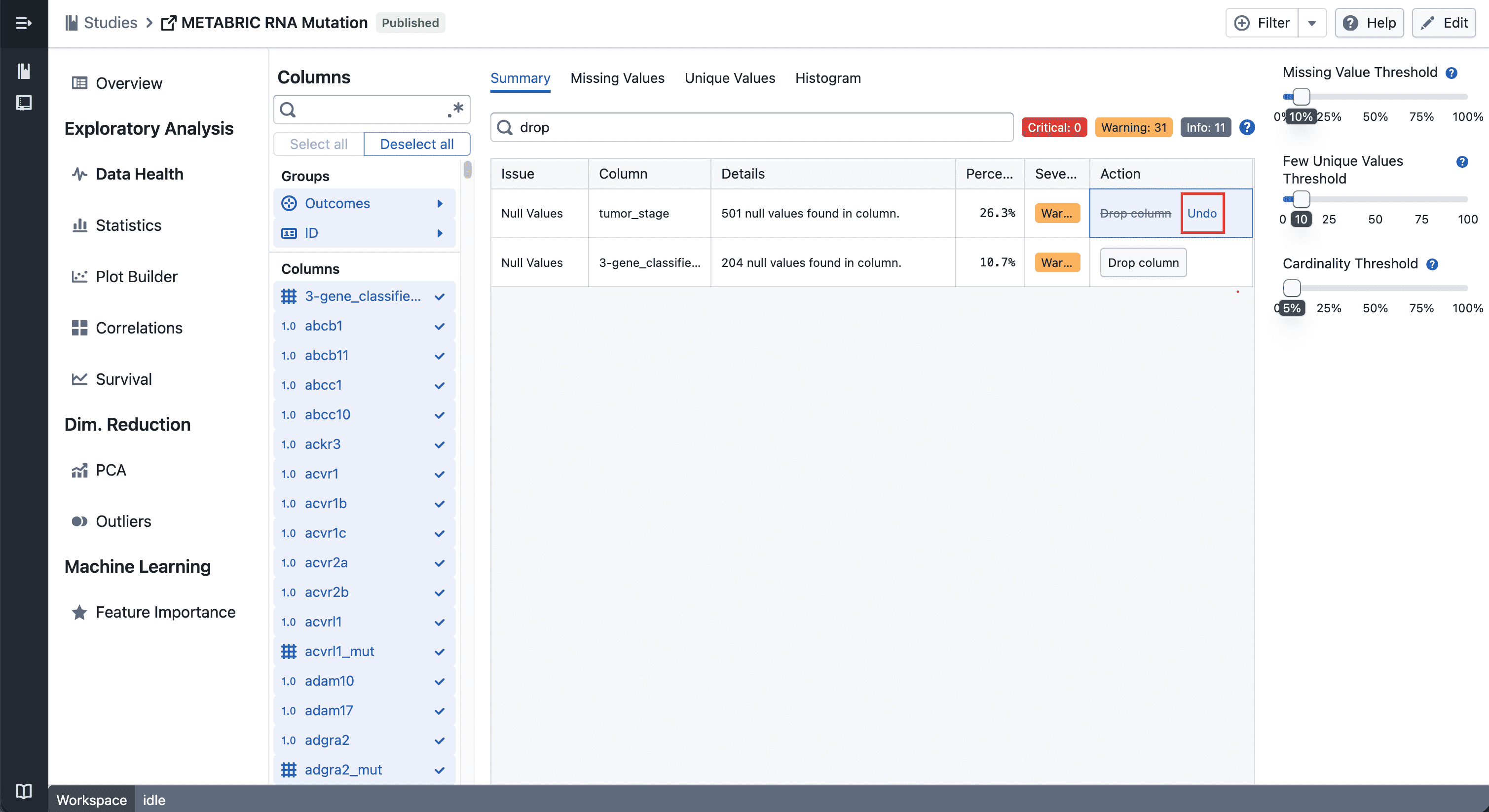
Undo

Undo Drop Column Button

Changed your mind? Hit the undo button on the same row to bring the column back instantly.


Notes

  • Dropped columns are hidden, not deleted — your data stays intact
  • If you notice any unexpected behavior, please share steps to reproduce

Multi-Evaluation Navigation in Feature Importance

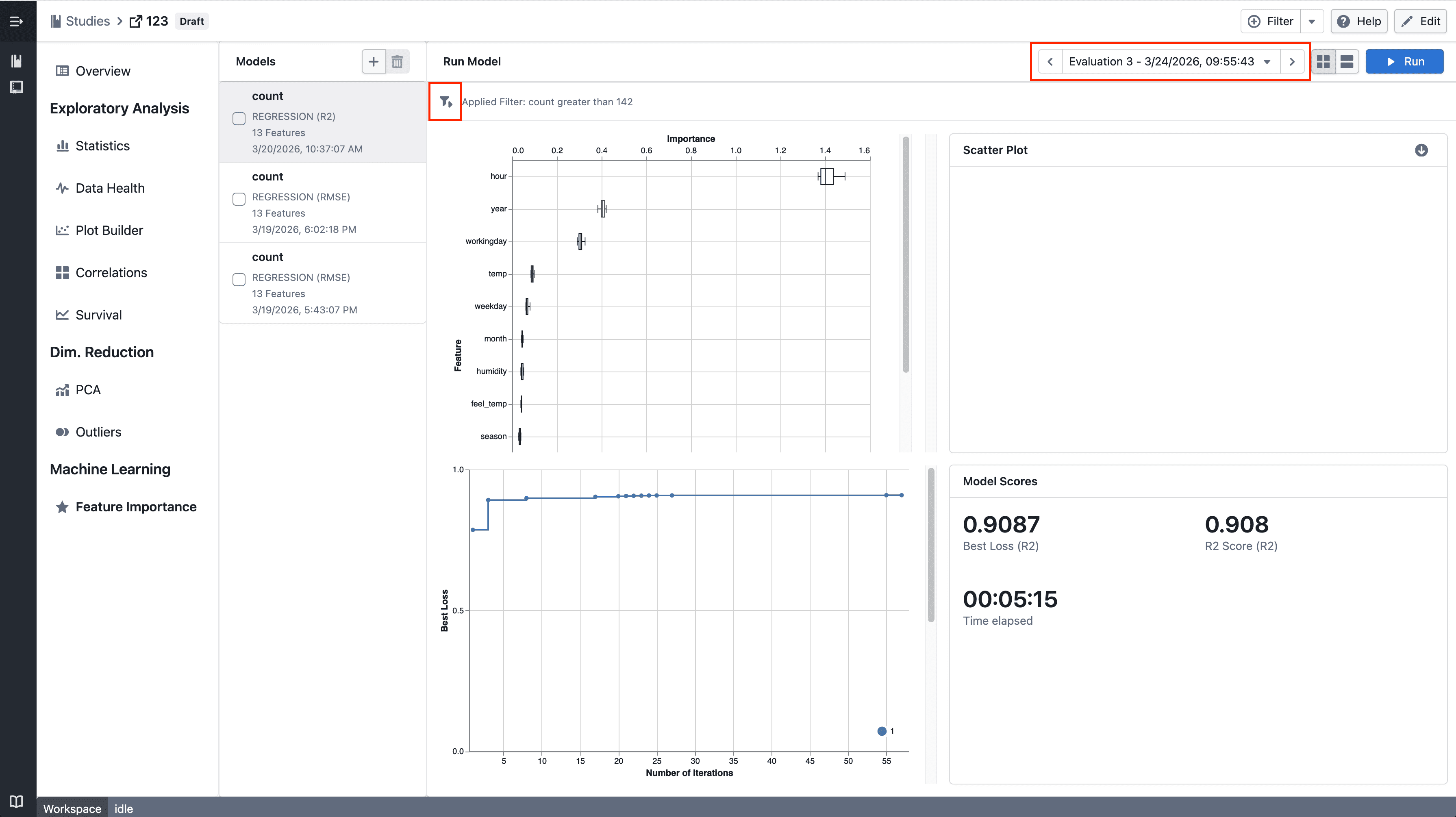
Navigate between historical model evaluations in Feature Importance.

What's included

How it works

Feature Importance

  • Step through historical model evaluations using the new navigation controls
  • The latest evaluation remains the default when no selection is made
  • Quickly reapply filters across views for consistent analysis

Notes

  • If you notice any unexpected behavior, please share steps to reproduce

Trellis plots in Plot Builder

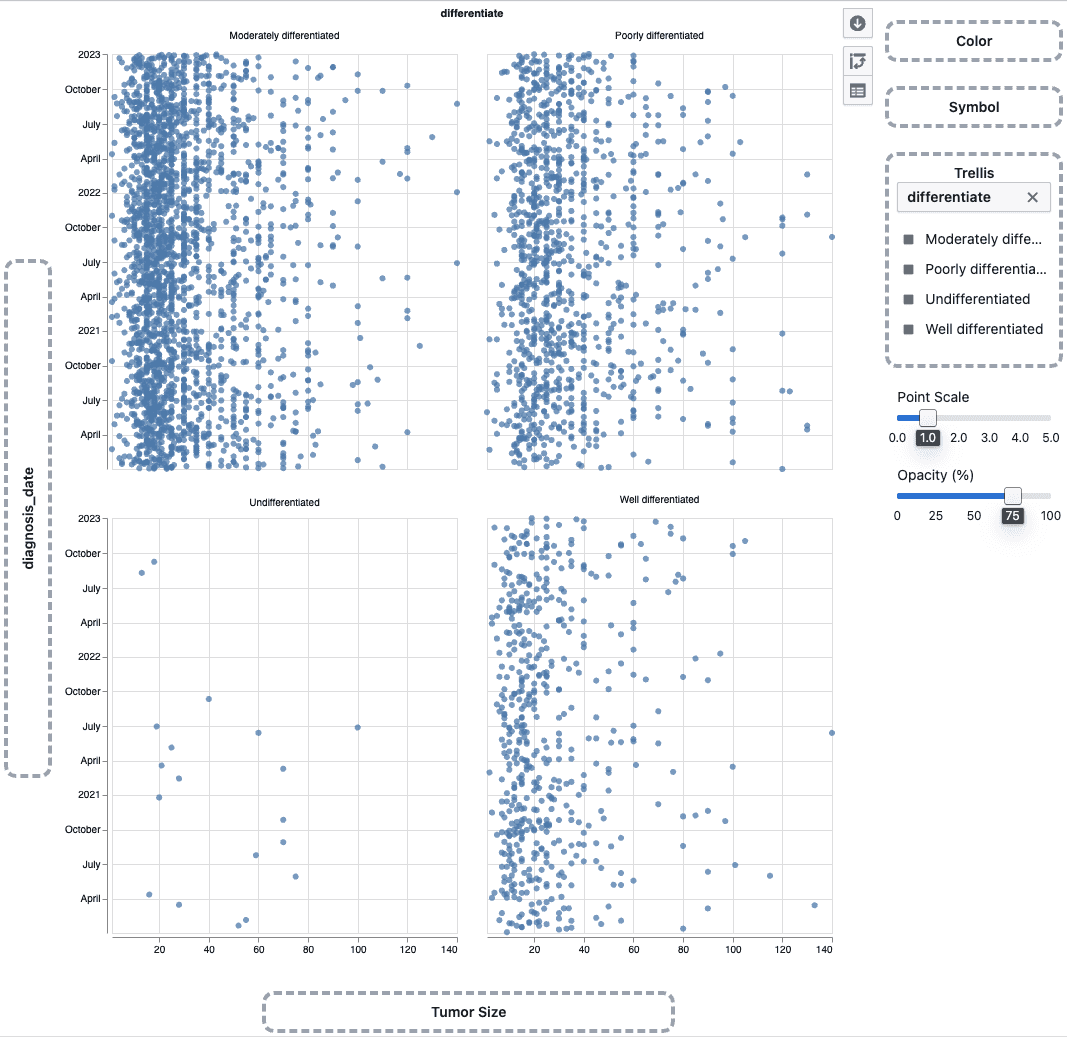
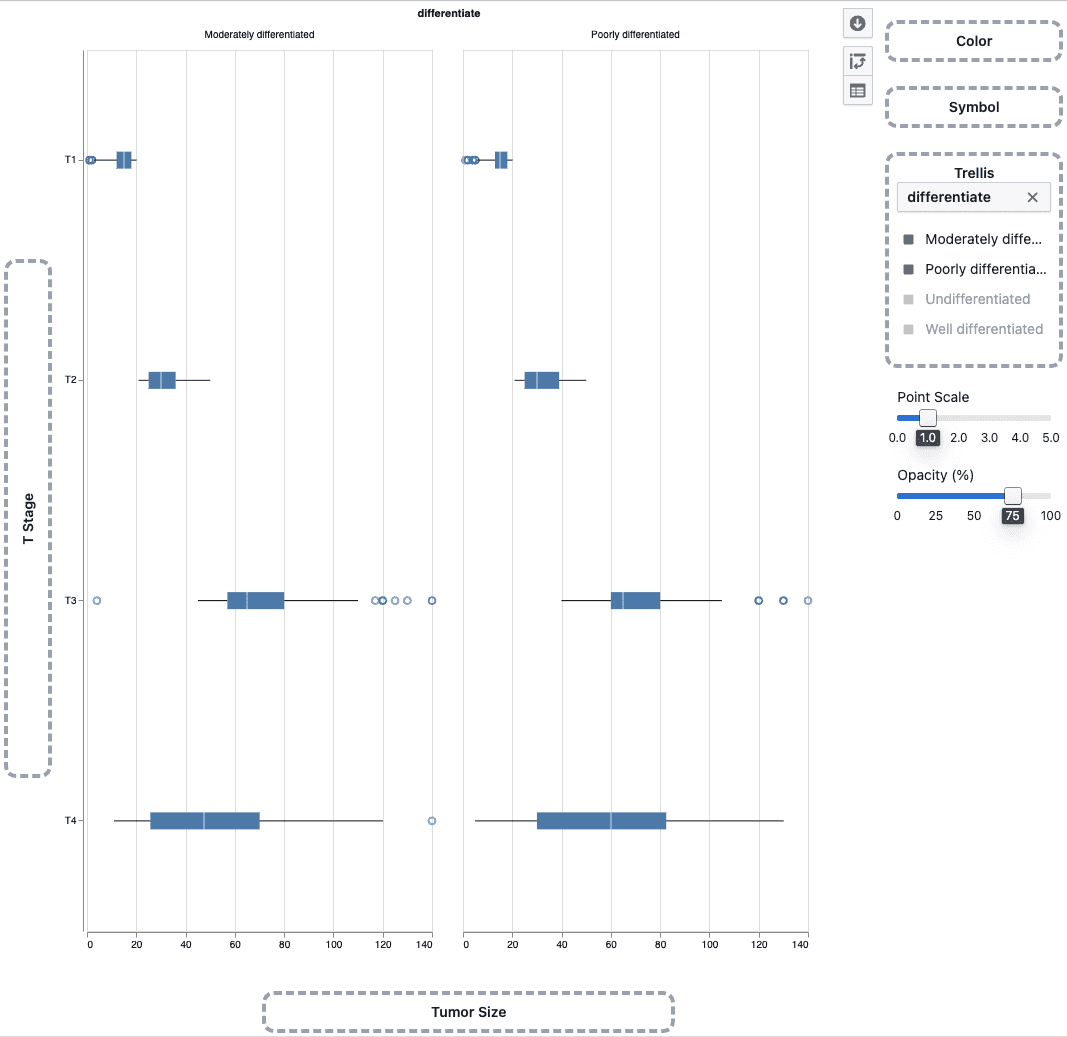
Split scatter plots and box plots into a multi-panel grid by any categorical column to compare patterns across groups side by side.

What's included

How it works

Trellis scatter plot

  • Drag a categorical column onto the Trellis drop zone in the plot sidebar
  • The plot splits into a grid of panels — one per category
  • Works with scatter plots and box plots

Trellis box plot

  • Use the trellis legend to choose which categories to display
  • Up to 4 panels can be shown at a time

Notes

  • Heatmaps do not support trellis
  • Trellis behavior may continue to evolve during the beta phase
  • If you notice any unexpected behavior, please share steps to reproduce

Save option for global filters

Studies now supports saving global filters, allowing you to reuse frequently used filter conditions across sessions.

What’s included

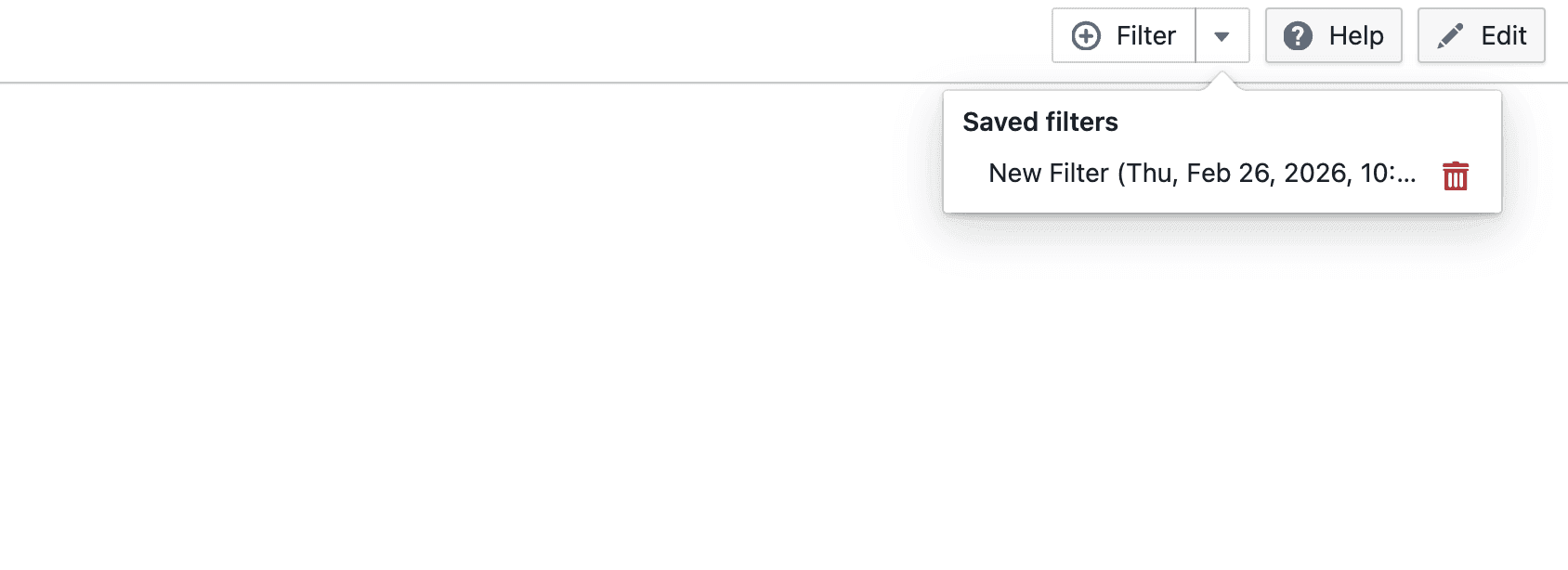
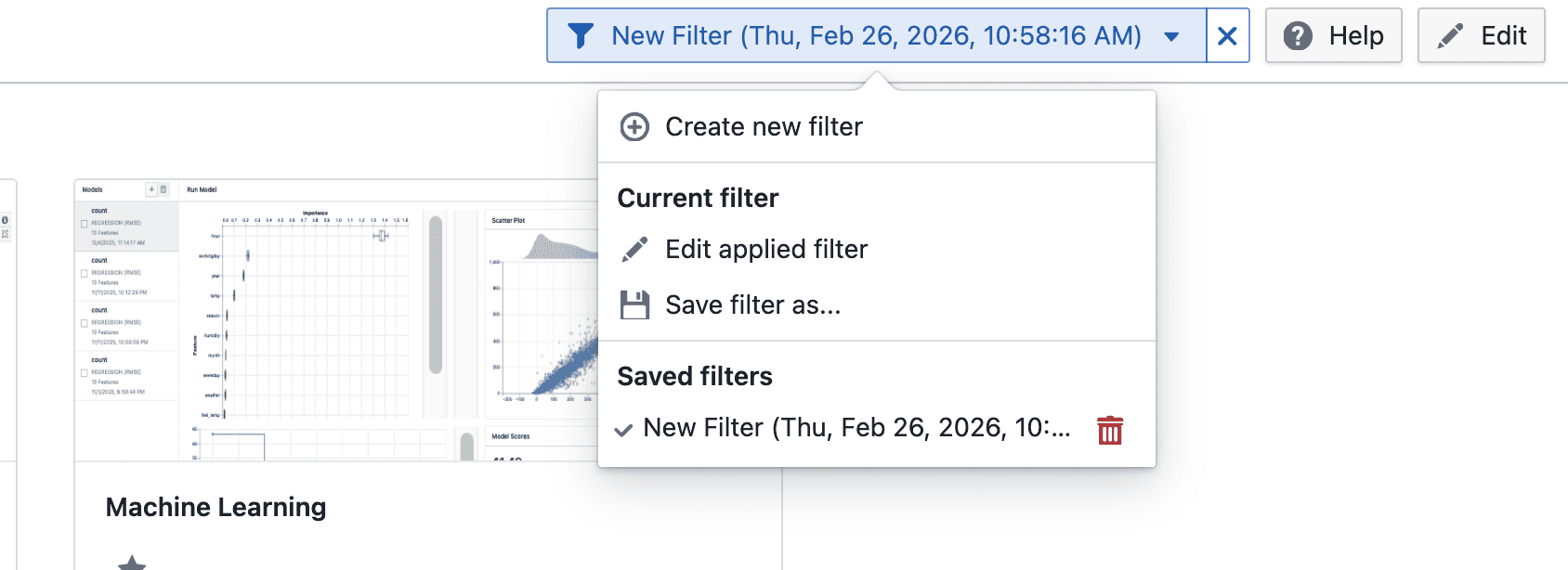
Global filters with save option in Studies

On click

  • Click Filters to access global filtering actions
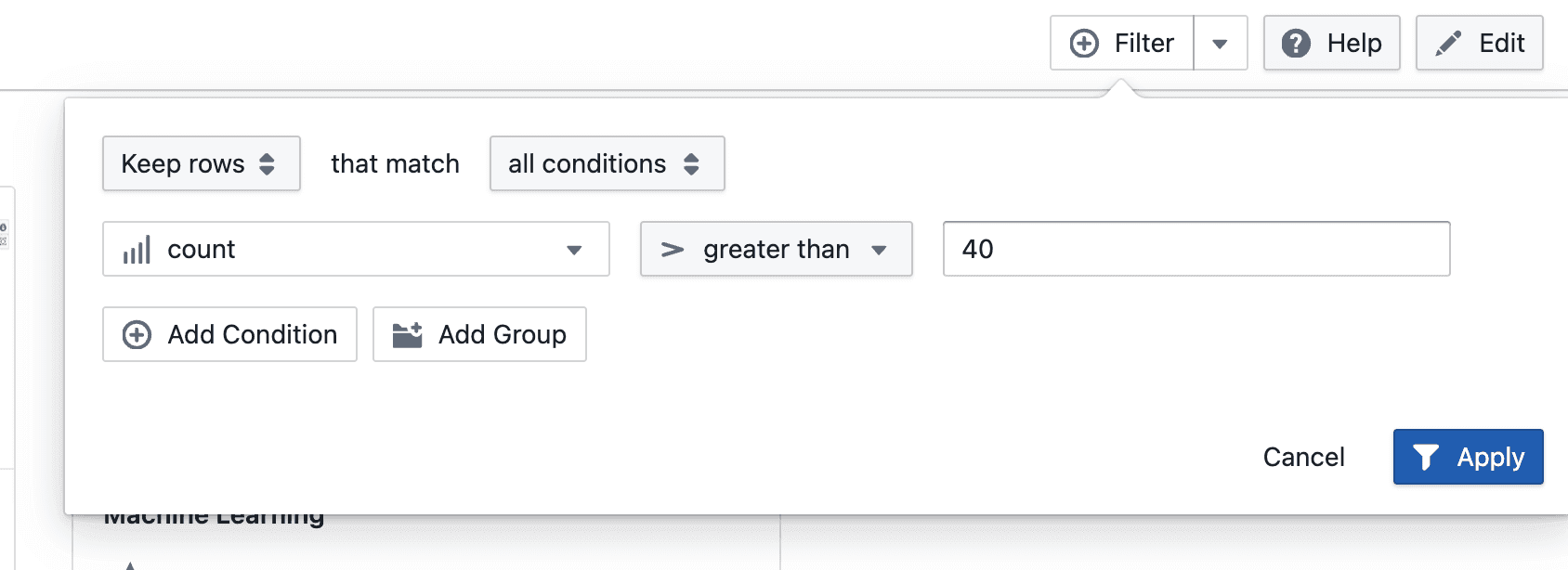
  • Create new filter conditions using supported operators and values

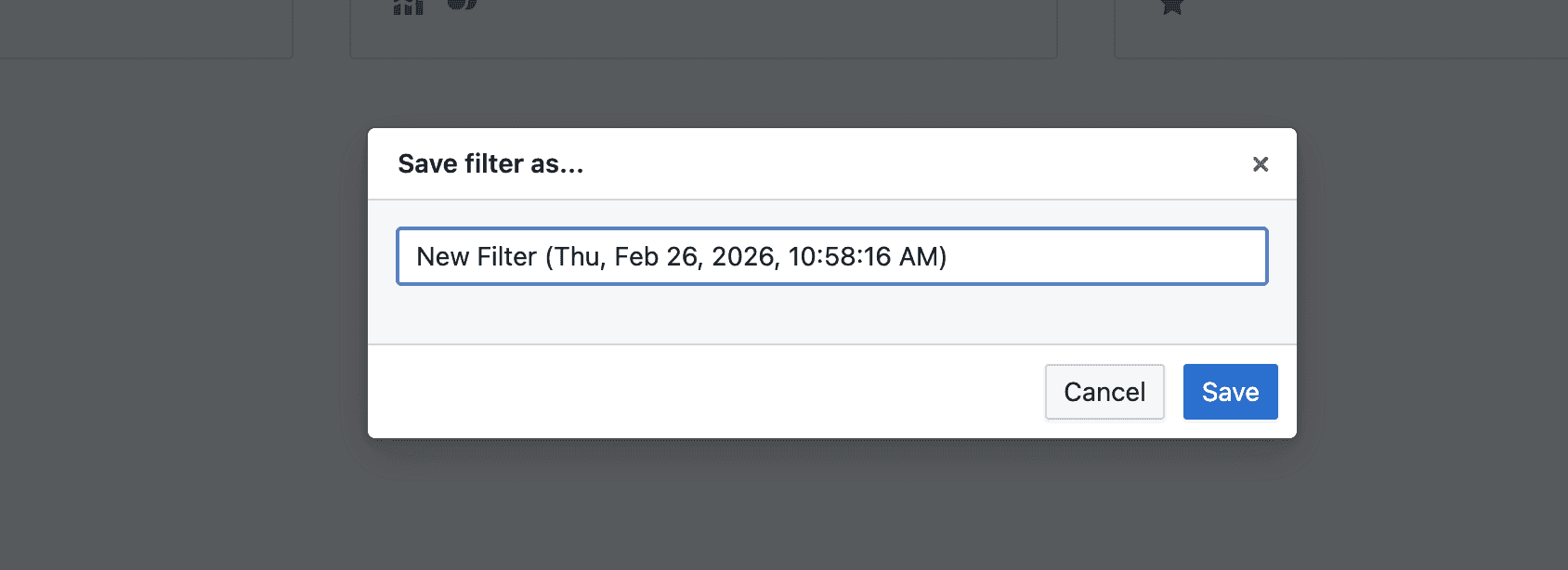
On create On save as On save as dialog

  • New filters can be saved for reuse by providing a filter name

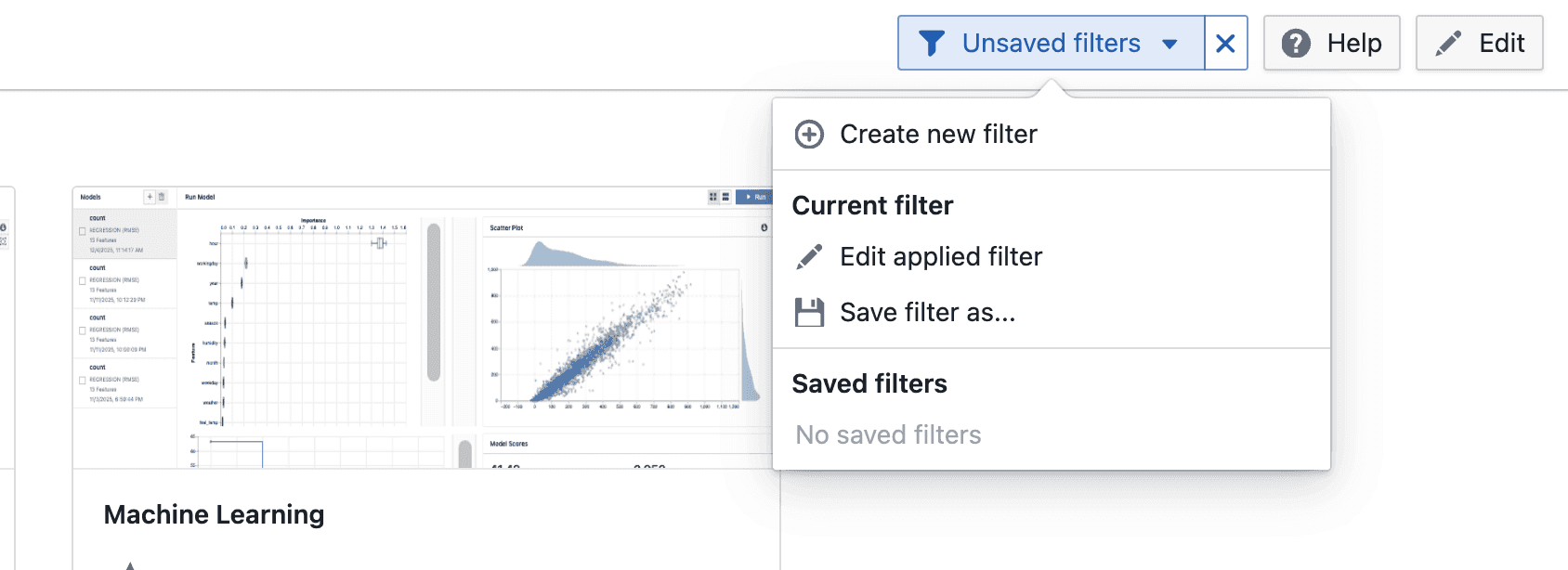
On apply

  • Applied filters can be edited and updated if they were previously saved
  • View and apply saved filters from the Filters menu
  • Saved filters can be reused, updated, or removed

Notes

  • Global filters apply to the current study
  • Saved filters are available across sessions
  • Filtering behavior may continue to evolve during the beta phase
  • If you notice any unexpected behavior, please share the steps to reproduce it

Add filters to statistic table

Statistics tables now support column filtering to make it easier to narrow down and analyze values.

What’s included

Column filtering in statistics tables

On hover

  • Hover over a column header to click on filter to access the filter menu

On applying

  • Select a filter operator and provide a value (where applicable)
  • Click Apply to add the filter condition

After applying

  • Applied filters appear as tags below the table header
  • Multiple filters can be added to progressively narrow down results
  • Individual filters can be removed directly from their tags

With sorting

  • Filtering and sorting can be used together to refine and order the displayed statistics

Notes

  • Filters apply to the currently displayed statistics
  • Multiple filters are combined to further narrow down results
  • Sorting respects the filtered result set
  • Filtering and sorting behavior may continue to evolve during the beta phase
  • If you notice any unexpected behavior, please share steps to reproduce