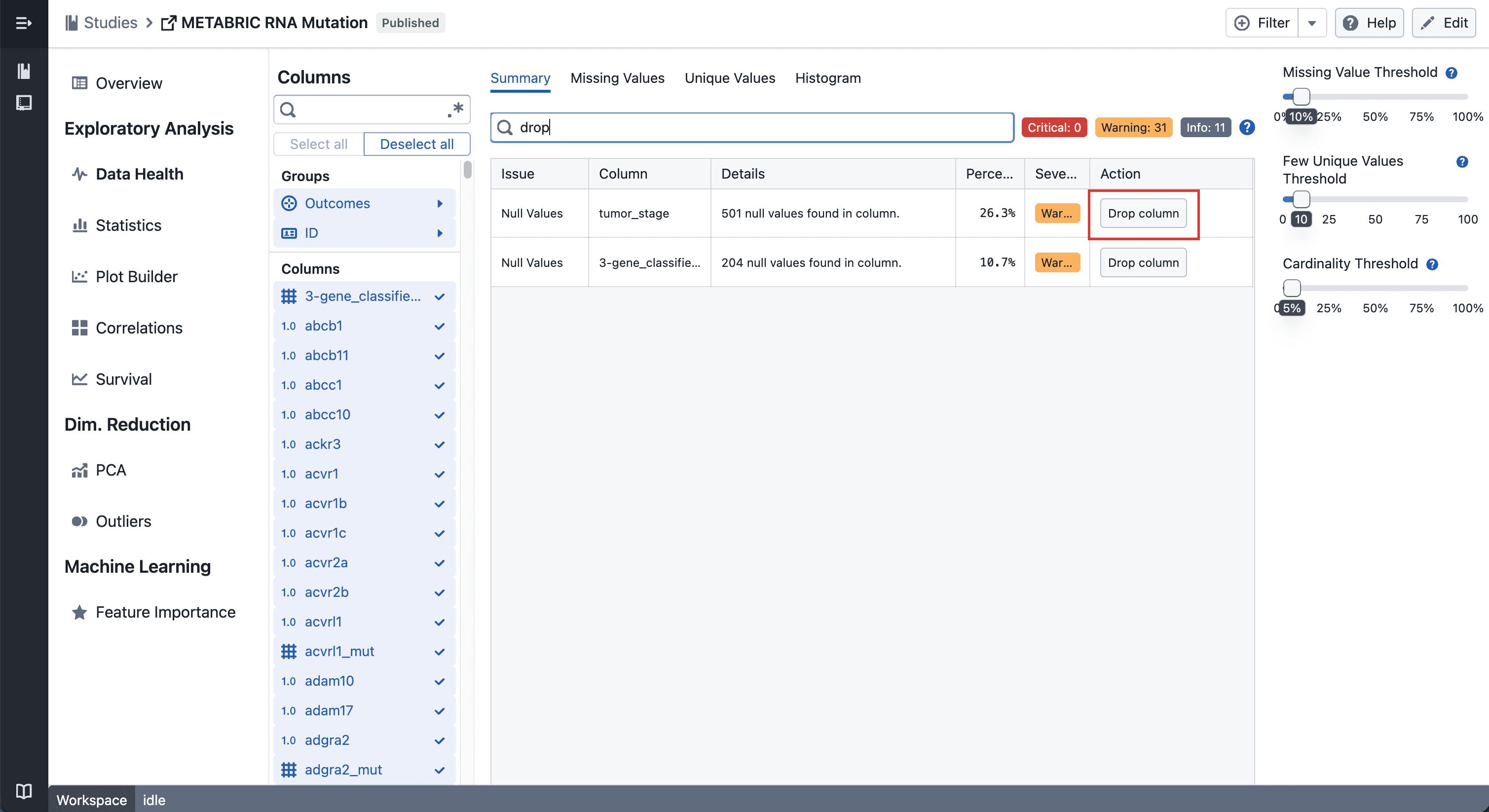
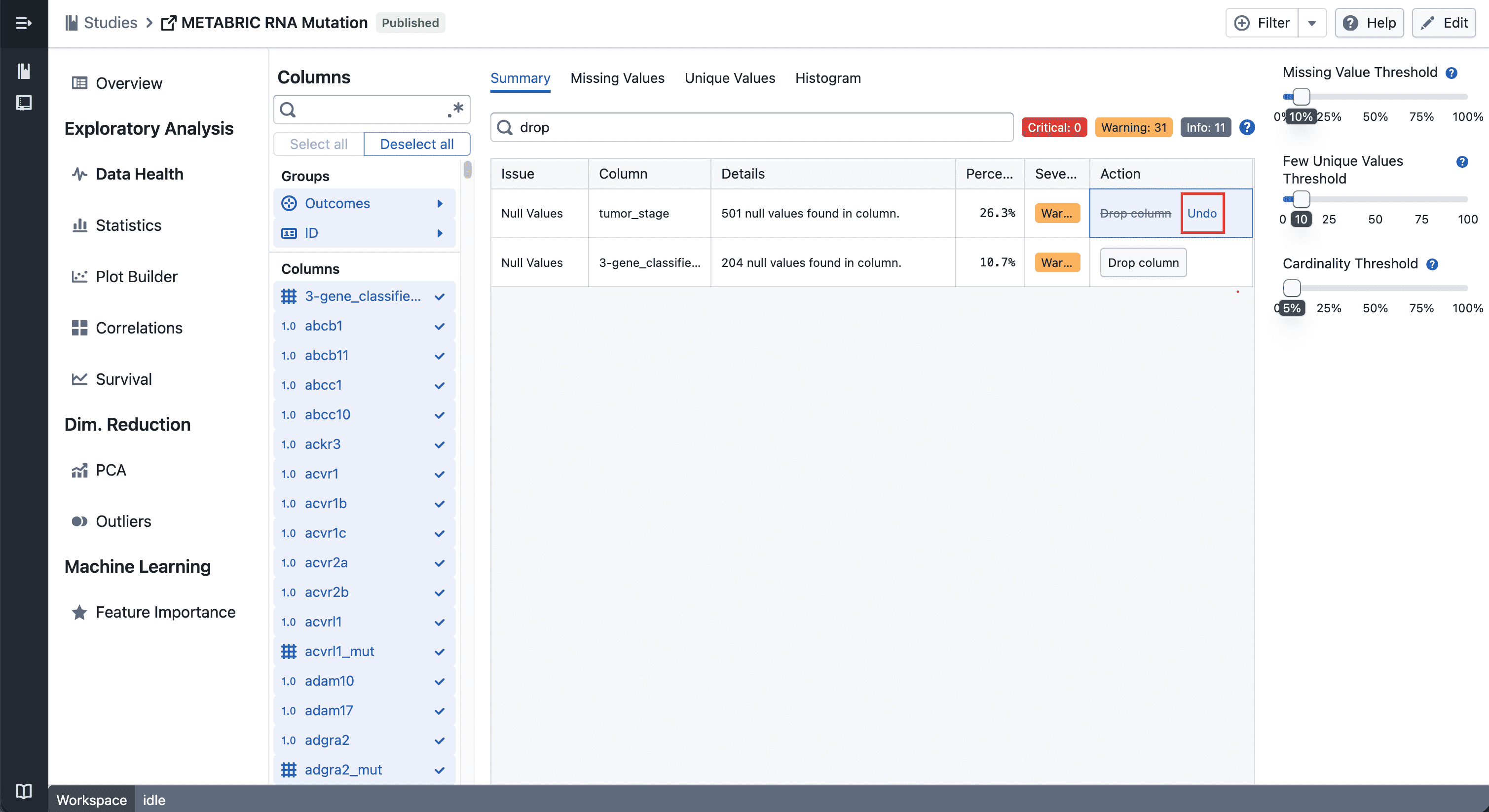
Exclude Columns in Data Health & Column Settings
Excluded columns are now hidden by default in the Data Health summary, and both the Data Health and Column Settings pages show a consistent "Hide excluded (N)" filter.
What's included
Standardized "Exclude" action
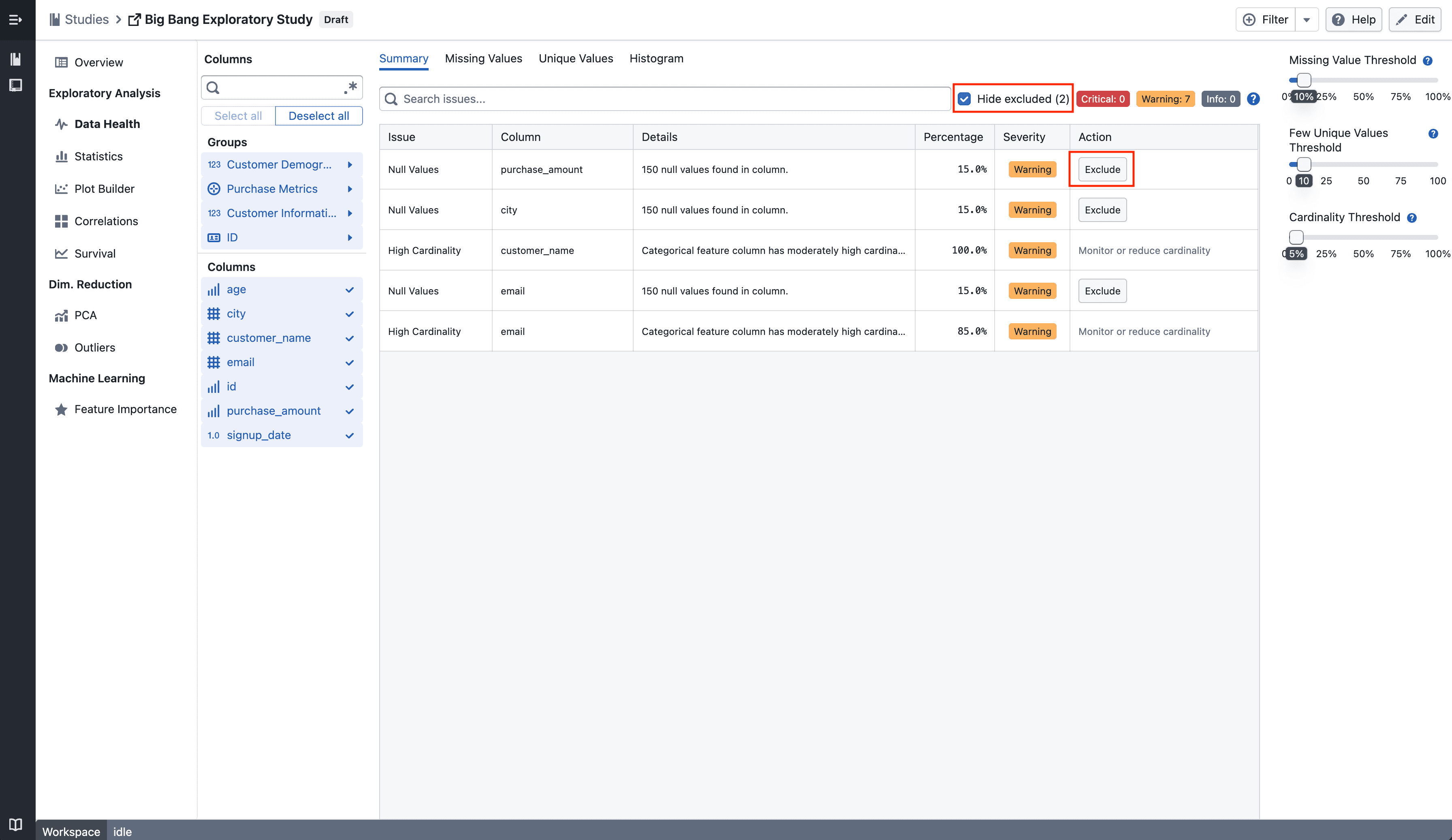
The action previously labeled Drop column in the Data Health table is now labeled Exclude, consistent with the terminology used in Column Settings. Excluded columns (visibility offs) are now hidden by default in the Data Health summary table. A Hide excluded (N) checkbox appears in the toolbar whenever there are excluded columns, allowing you to reveal them when needed.
Consistent filter in Column Settings
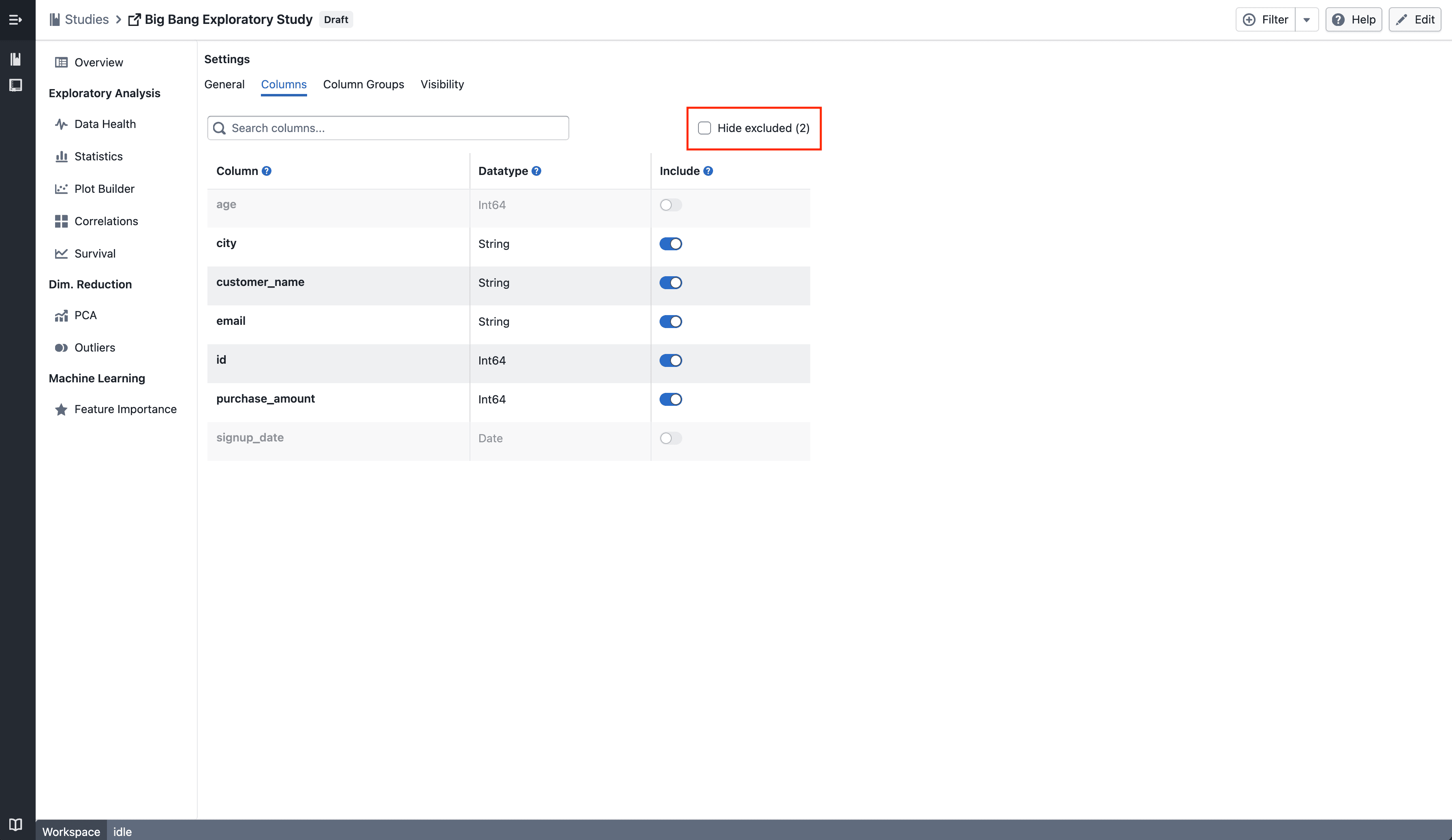
The same Hide excluded (N) checkbox — showing the count of excluded columns — is now displayed in the Column Settings page, matching the behaviour in Data Health.
Notes
- Excluded columns are hidden, not deleted — your underlying data remains unchanged
- The count in the checkbox reflects how many columns currently have visibility turned off
- If you notice any unexpected behavior, please share steps to reproduce