9 posts tagged with "New"

View All Tags

Exclude Columns in Data Health & Column Settings

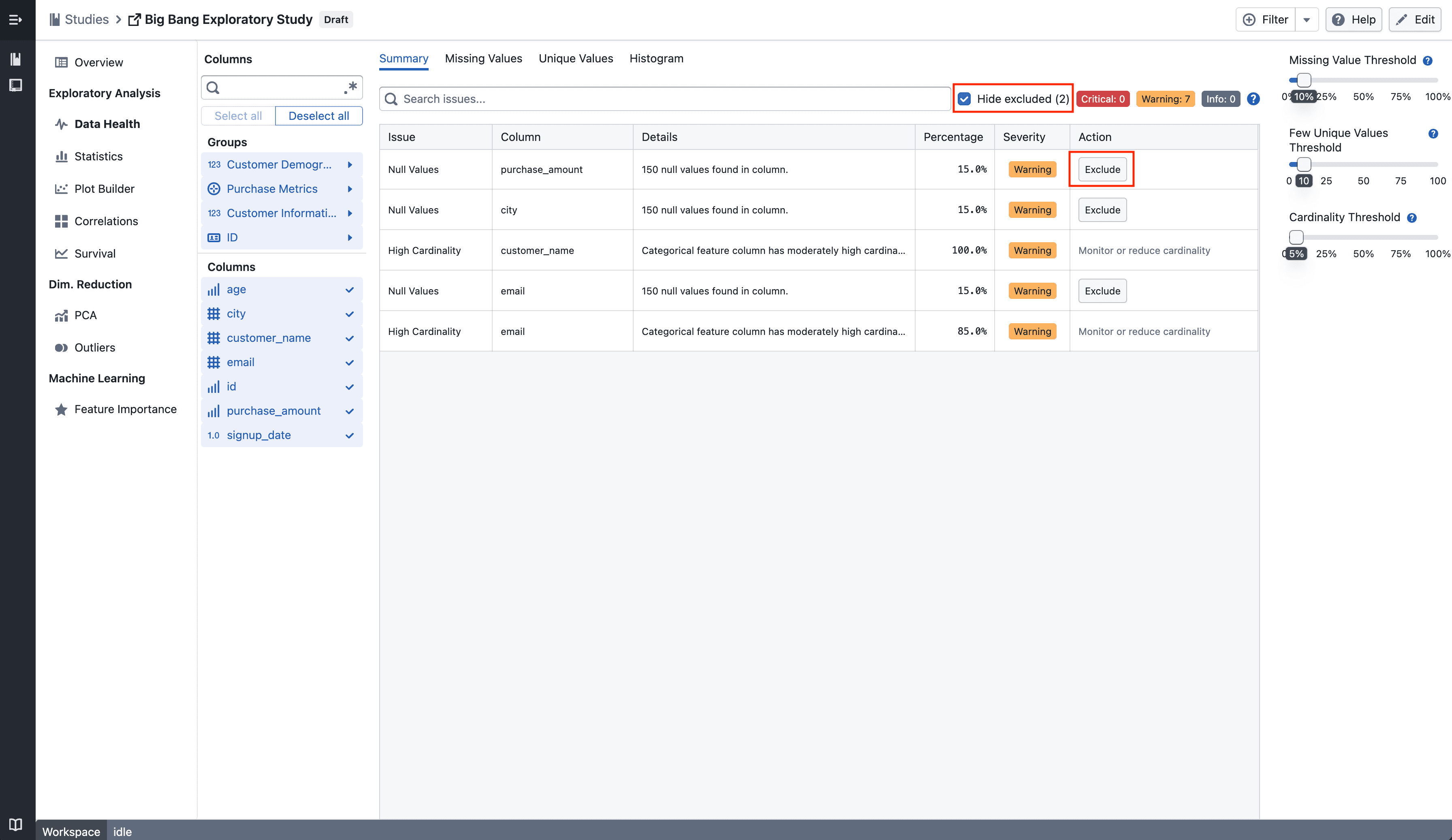
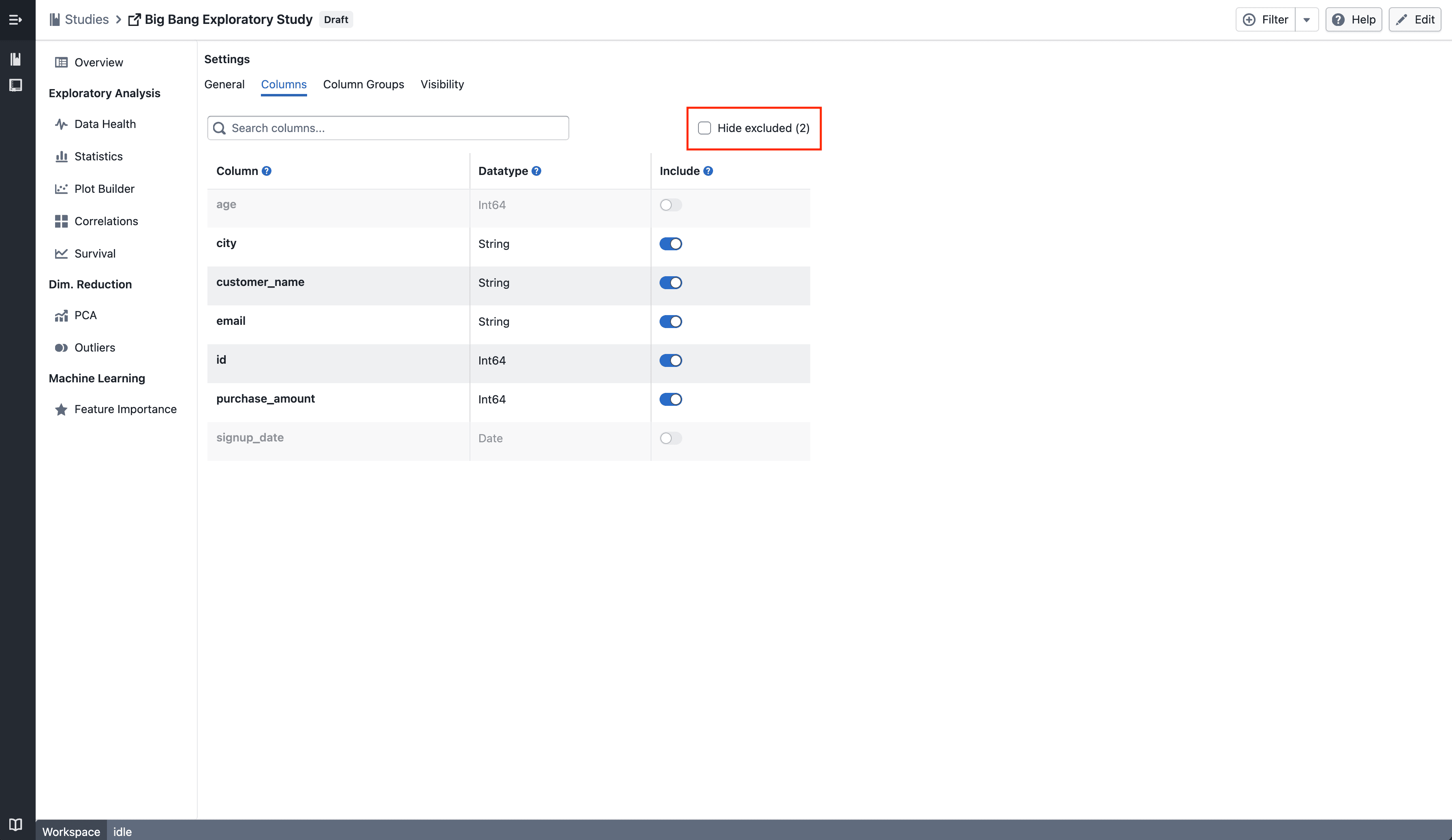
Excluded columns are now hidden by default in the Data Health summary, and both the Data Health and Column Settings pages show a consistent "Hide excluded (N)" filter.

What's included

Standardized "Exclude" action

Summary

The action previously labeled Drop column in the Data Health table is now labeled Exclude, consistent with the terminology used in Column Settings. Excluded columns (visibility offs) are now hidden by default in the Data Health summary table. A Hide excluded (N) checkbox appears in the toolbar whenever there are excluded columns, allowing you to reveal them when needed.

Consistent filter in Column Settings

Column Edit

The same Hide excluded (N) checkbox — showing the count of excluded columns — is now displayed in the Column Settings page, matching the behaviour in Data Health.


Notes

  • Excluded columns are hidden, not deleted — your underlying data remains unchanged
  • The count in the checkbox reflects how many columns currently have visibility turned off
  • If you notice any unexpected behavior, please share steps to reproduce

AI Summary for Plot Builder

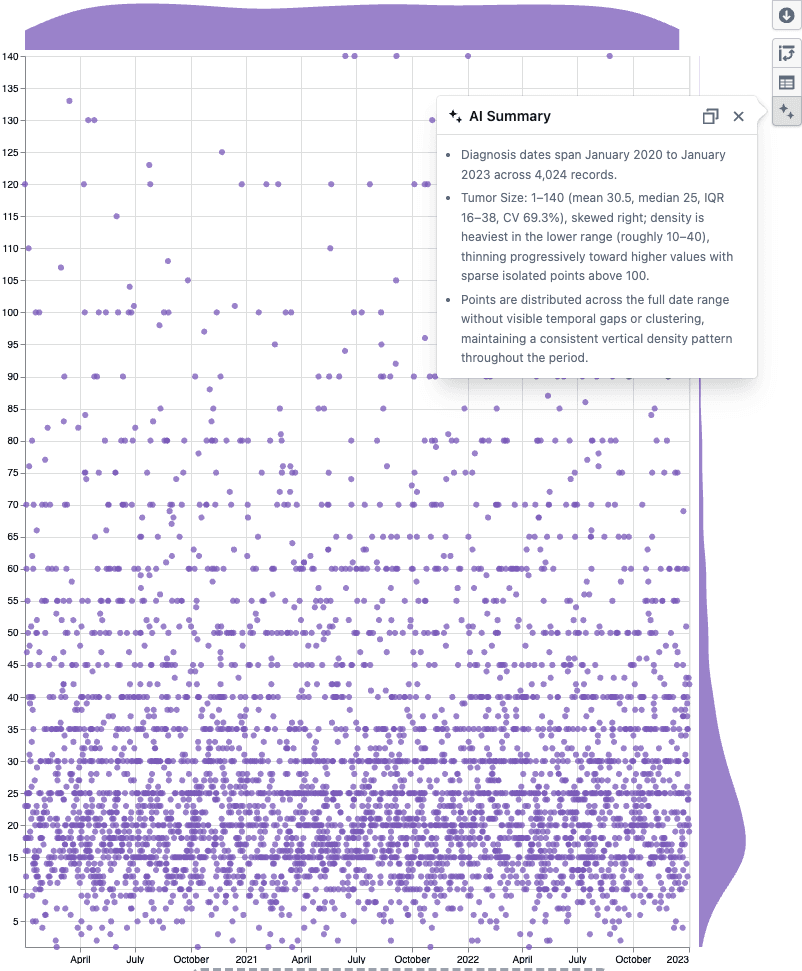
Instantly understand any plot with an AI-generated summary — powered by an LLM with vision.

What's included

How it works

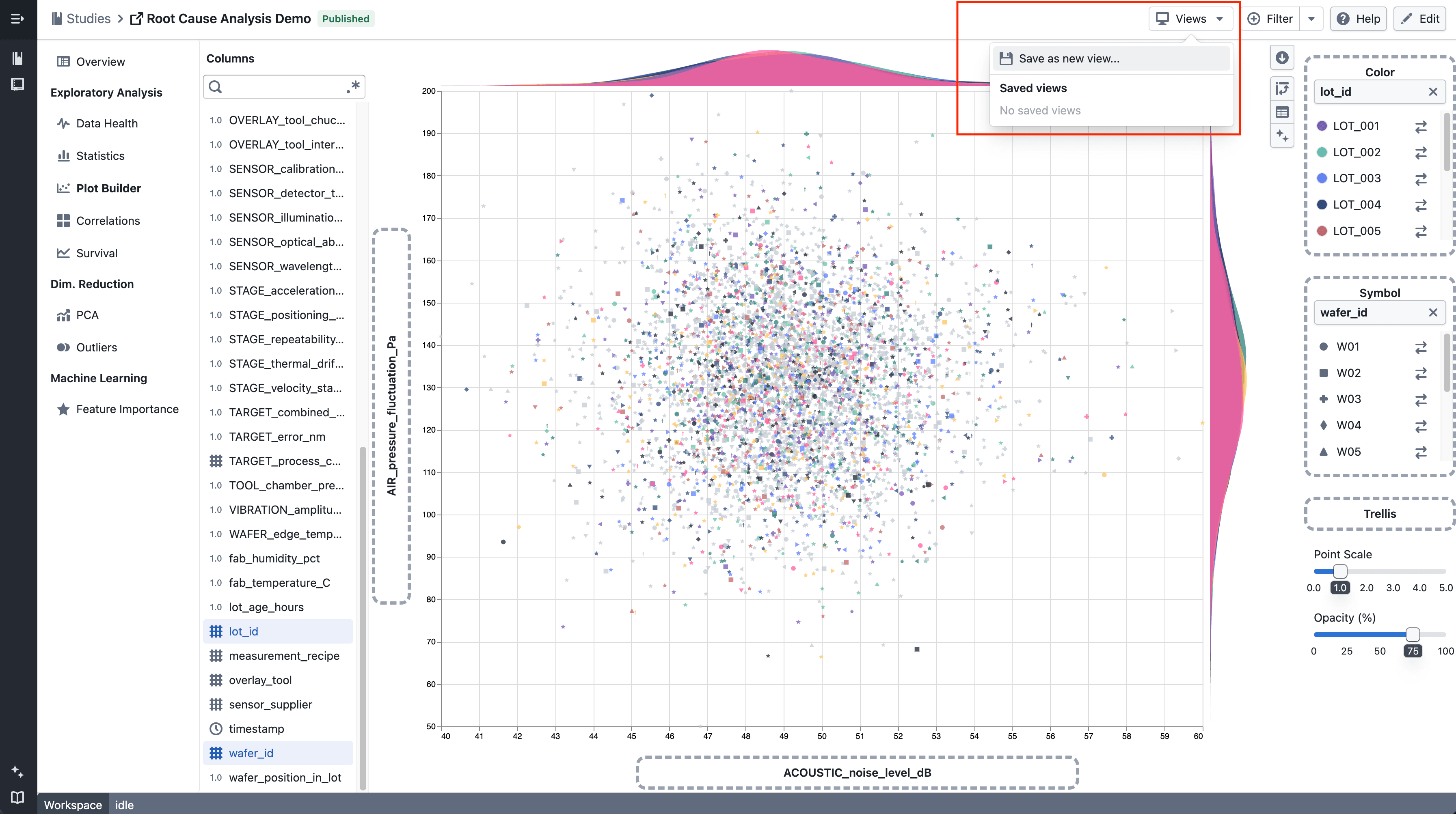
AI Summary popover on a scatter plot

  • Click the AI Summary button in the Plot Builder toolbar
  • A vision-enabled LLM reads the plot statistics and sees the chart, then returns bullet points covering distributions, group breakdowns, data quality issues, and visual patterns like clusters or outliers
  • Hit copy to paste the summary into a report or analysis note

Notes

  • Works with scatter plots, box plots, and heatmaps
  • The summary is factual only — the LLM does not assess or make recommendations
  • If you notice any unexpected behavior, please share steps to reproduce

Column Management

Rename and include or exclude columns across your study from Column Management.

What's included

Column Management

Column Management

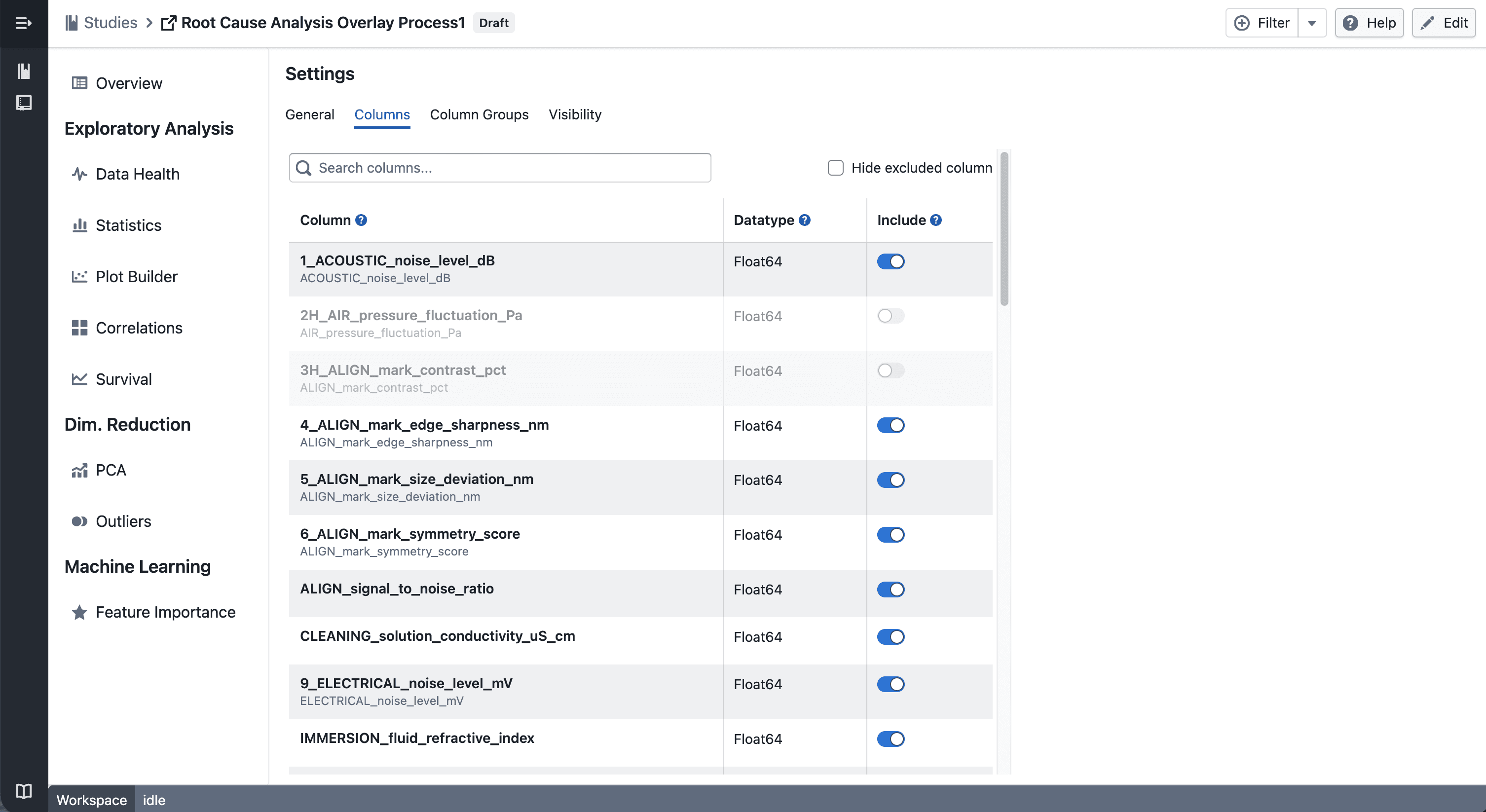
You can now manage columns from Edit → Columns.

  • Exclude columns to remove them from all views in the study — including plots, statistics, and column groups
  • Include columns again at any time to restore them across the study

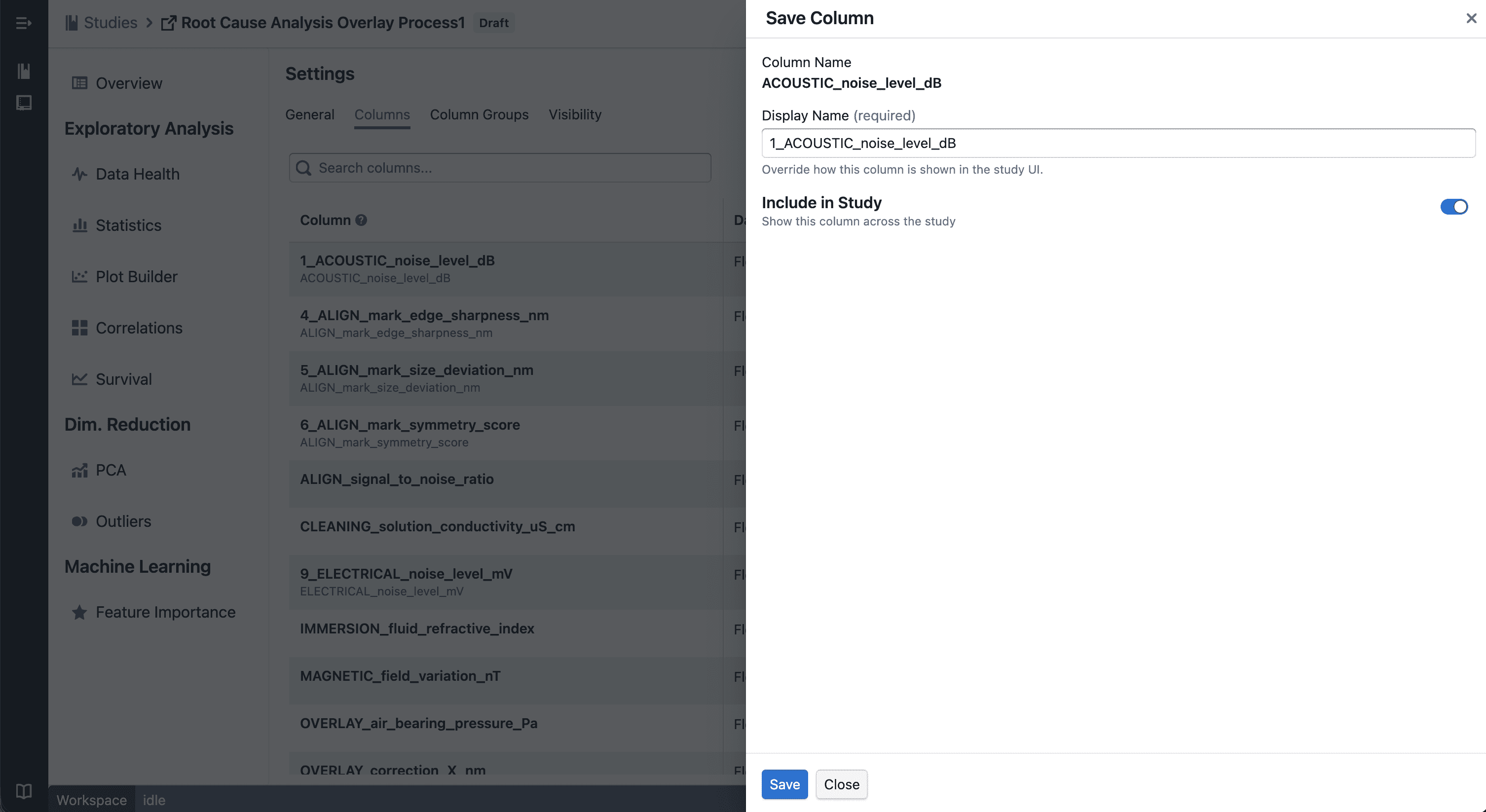
Update Column

Drawer to update

  • Rename columns to use more meaningful display names across your study
  • Changes are applied consistently across all views

Notes

  • Excluded columns are hidden, not deleted — your underlying data remains unchanged
  • Renaming affects display only and does not modify raw data
  • If you notice any unexpected behavior, please share steps to reproduce

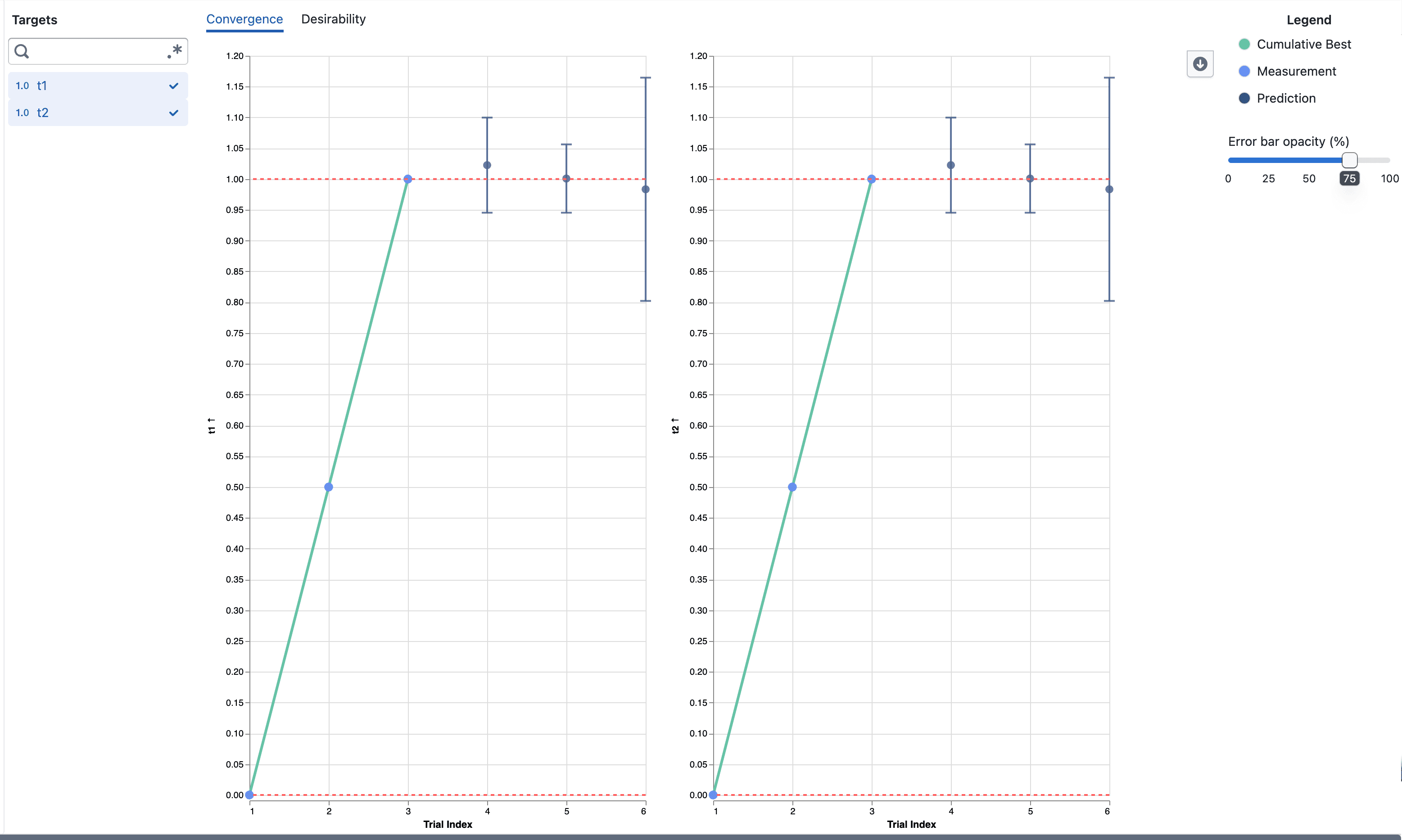
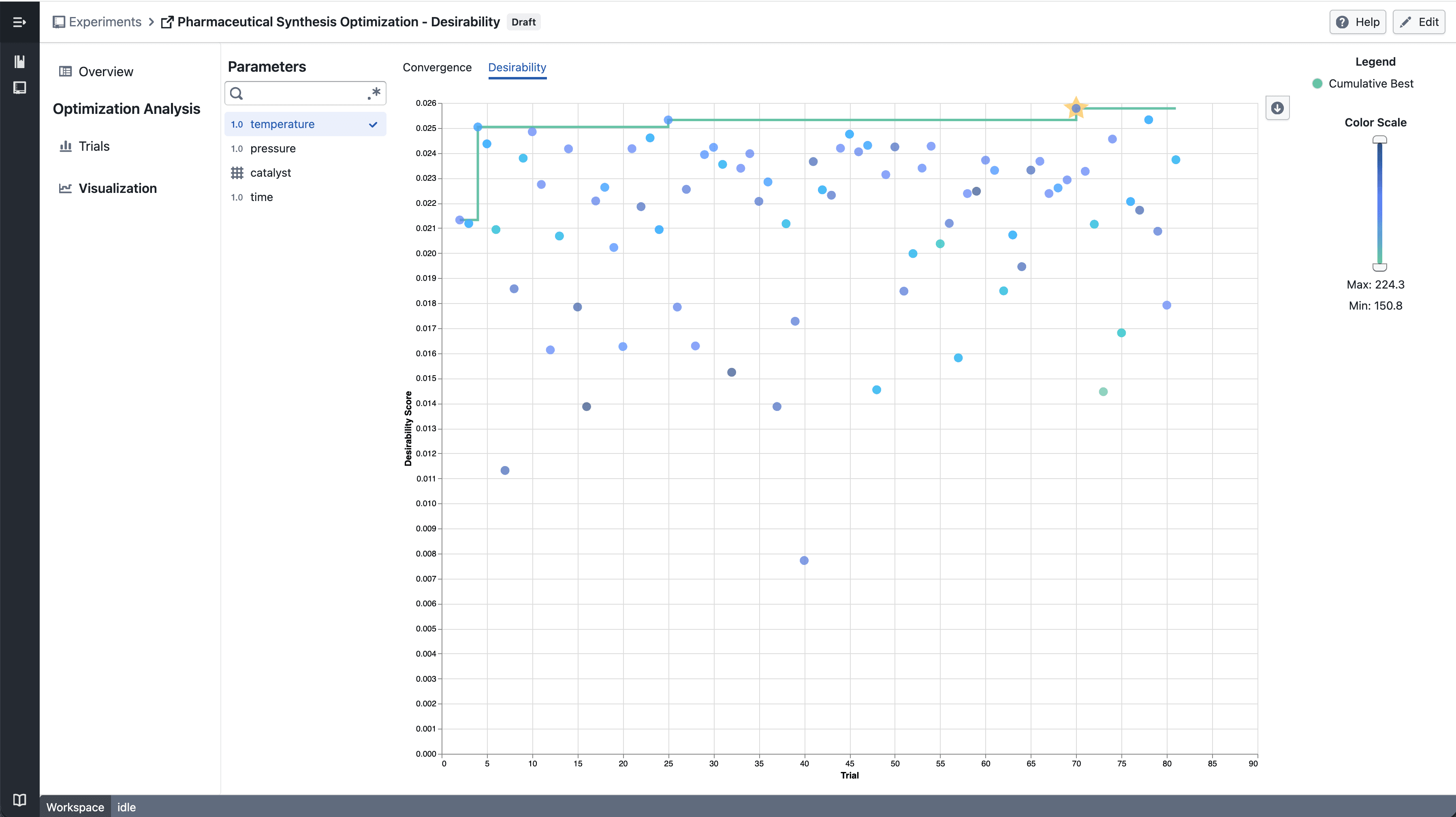
Desirability Convergence Chart

New desirability convergence chart for tracking optimization progress across experiment trials.

What's included

How it works

Numerical Parameter - select parameter

  • Select a numerical parameter from the parameter sidebar to color data points by that parameter's value
  • A continuous color scale shows how parameter values relate to desirability scores across trials
  • The best so far line tracks the highest desirability achieved up to each trial

Categorical Parameter - select parameter

  • Select a categorical parameter to color data points by category
  • A discrete color legend identifies each category value

Notes

  • The convergence chart is available under the Desirability tab in the Visualization section
  • Chart interactions and layout may continue to evolve during the beta phase
  • If you notice any unexpected behavior, please share steps to reproduce

Trellis plots in Experiment Visualization Convergence

Split convergence plot into a multi-panel grid when multiple targets are selected.

What's included

How it works

Trellis convergence plot

  • Select multiple targets from the target sidebar
  • The convergence plot automatically splits into a grid — one panel per target
  • Each panel shares the same x-axis (iteration index) but has an independent y-axis scale

Trellis - select point

  • Click a data point to highlight the corresponding trial across all panels

Trellis - draw point

  • Shift-drag to draw a brush selection across panels
  • Points outside the selection are dimmed
  • Up to 6 targets can be displayed at a time

Notes

  • Single target selection continues to show the standard convergence plot
  • Trellis layout and interactions may continue to evolve during the beta phase
  • If you notice any unexpected behavior, please share steps to reproduce

Drop Column in Data Health

You can now drop columns directly from the Data Health table. Dropped columns are hidden across all study views and the change is saved automatically.

What's included

Drop Column

Drop Column Button

Click the drop button on any row in the Data Health table to hide that column across all views in the study — plots, statistics, and column groups included.

Undo

Undo Drop Column Button

Changed your mind? Hit the undo button on the same row to bring the column back instantly.


Notes

  • Dropped columns are hidden, not deleted — your data stays intact
  • If you notice any unexpected behavior, please share steps to reproduce

Multi-Evaluation Navigation in Feature Importance

Navigate between historical model evaluations in Feature Importance.

What's included

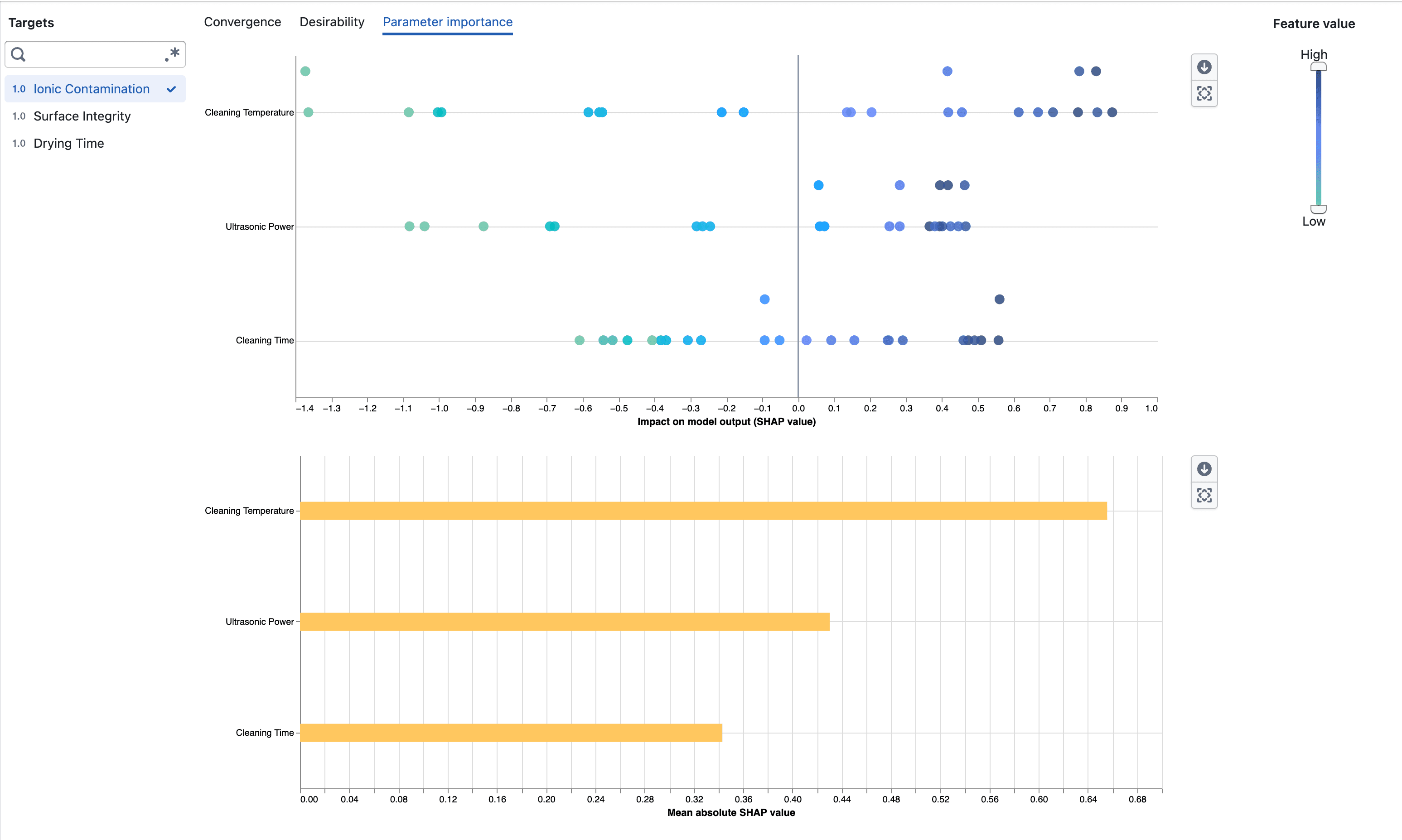
How it works

Feature Importance

  • Step through historical model evaluations using the new navigation controls
  • The latest evaluation remains the default when no selection is made
  • Quickly reapply filters across views for consistent analysis

Notes

  • If you notice any unexpected behavior, please share steps to reproduce

Trellis plots in Plot Builder

Split scatter plots and box plots into a multi-panel grid by any categorical column to compare patterns across groups side by side.

What's included

How it works

Trellis scatter plot

  • Drag a categorical column onto the Trellis drop zone in the plot sidebar
  • The plot splits into a grid of panels — one per category
  • Works with scatter plots and box plots

Trellis box plot

  • Use the trellis legend to choose which categories to display
  • Up to 4 panels can be shown at a time

Notes

  • Heatmaps do not support trellis
  • Trellis behavior may continue to evolve during the beta phase
  • If you notice any unexpected behavior, please share steps to reproduce

Kaplan-Meier survival analysis

Analyze survival data with Kaplan-Meier curves, supporting event tracking, censored observations, group comparisons, and interactive visualizations.

What's included

Survival curve visualization

Kaplan-Meier survival curves

  • Step function curves show survival probability over time
  • Tick marks indicate subjects who left the study without experiencing the event
  • Filter by time period to focus on specific study phases
  • Hover over curves to see detailed statistics at each time point

Group comparisons

Group comparison

  • Compare survival across multiple groups with color-coded curves
  • Use filters to define groups
  • Legend and tooltips identify each group

Event and censoring logic

  • Set event conditions for what you're tracking (e.g., death, disease progression)
  • Set censoring conditions for subjects who exit the study early
  • Use flexible filters to define complex criteria
  • Data not matching either condition is excluded

Multi-panel plots

Faceted survival plots

  • View multiple survival curves side-by-side in a grid
  • Split data by categories for easier comparison

Interactive tooltips

Hover over any point to see:

  • Time value and date
  • Survival probability
  • Subjects at risk
  • Events occurred
  • Subjects censored
  • Group name (when comparing groups)

Notes

  • New beta feature - behavior may change based on feedback
  • Large datasets are limited to 5000 data points for performance