Uploading Trials via CSV
Use a CSV file to create new trials or update existing ones in bulk.
Upload trials
- On the experiment's Trials page, open More, then click Import trials.
- Click Download template.
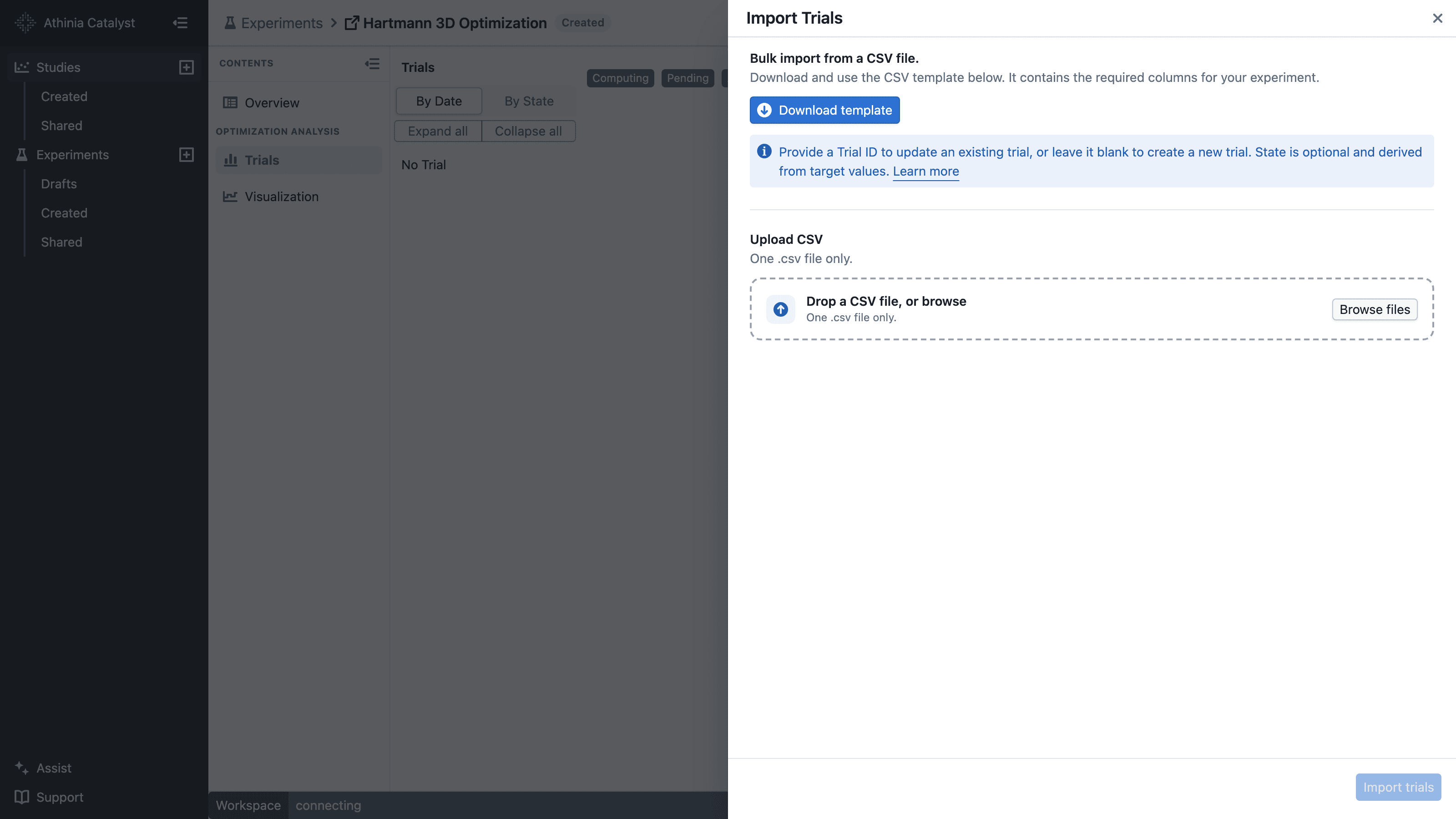
- Add one trial per row and save the file as
.csv. - Select or drop the file into the drawer.
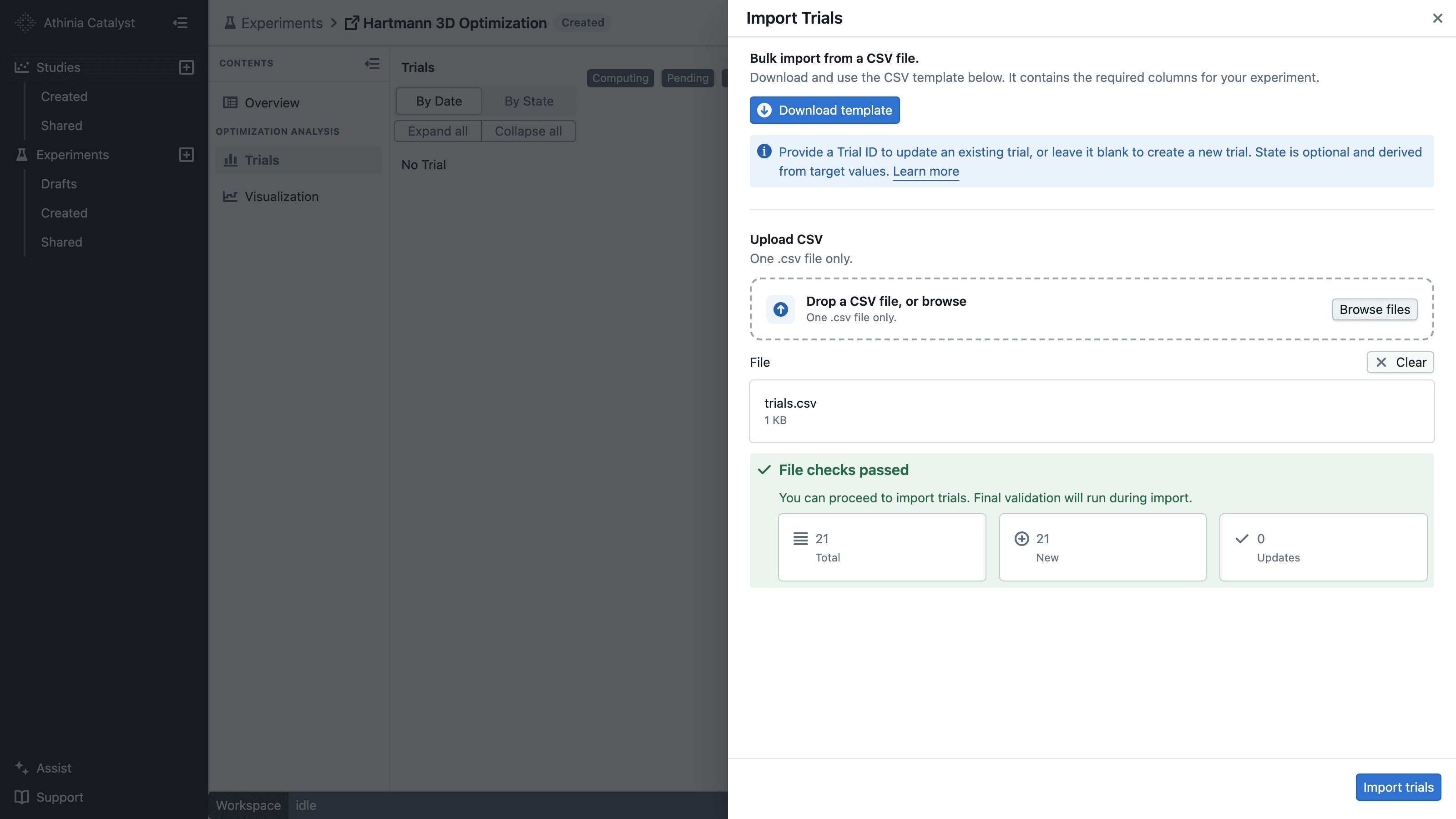
- Review the validation results, then click Import trials.
When the file is valid, the drawer summarizes how many rows will create new trials or update existing ones:
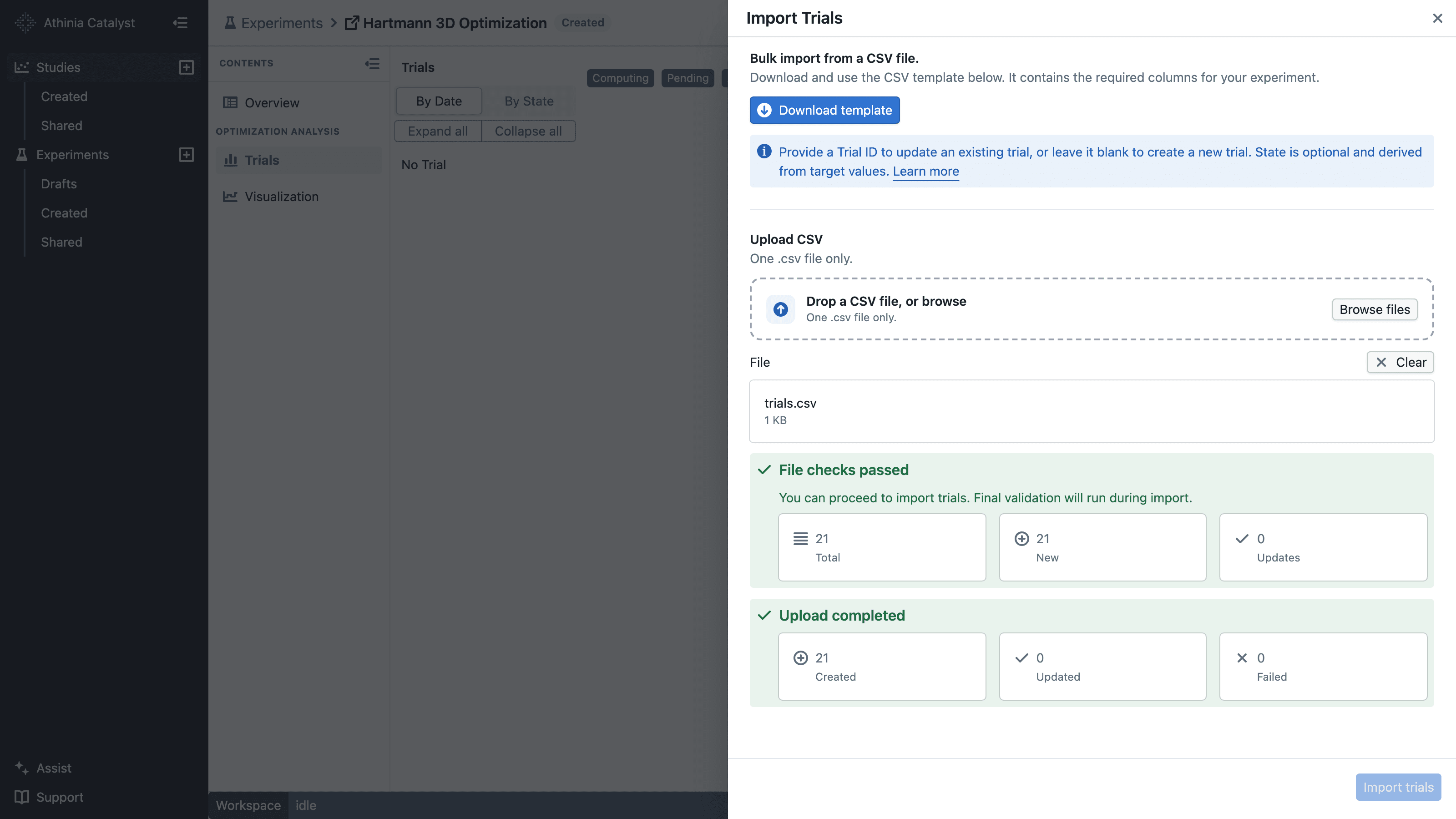
After the import finishes, review the created, updated, and failed totals before closing the drawer:
The downloaded template contains headers only. Use Export trials instead when you want a file containing existing trials.
Columns
| Column | Required | Description |
|---|---|---|
| Parameters | Yes | One column per experiment parameter. Every row requires a valid value. |
| Targets | Header only | One column per target. Values are optional but must be numeric when provided. |
| Trial ID | No | Leave blank to create a trial. Provide an existing ID to update that trial. |
| State | No | Leave blank to derive it from target values, or provide a supported state. |
| State Message | No | Optional explanation for a FAILED or REJECTED trial. Leave blank for other states. |
Parameter and target column names must match the experiment. Matching ignores capitalization and surrounding spaces.
The short and descriptive forms of these system headers are both accepted:
Trial IDorTrial ID (system generated)StateorState (optional)State MessageorState Message (for Failed or Rejected trials)
Trial Index is included in exports for display only and is ignored during import.
Duplicate trials
Before import, Catalyst checks whether a new row has the same parameter and target values as:
- a trial already in the experiment; or
- an earlier new row in the same CSV file.
Numeric formatting does not make a trial unique. For example, 75.5 and 75.50 are treated as the same value. Trial state and state message are not part of the comparison.
Rows containing a Trial ID are updates, so they are not marked as duplicates. Catalyst considers the final values from those updates when checking new rows in the same file. The same Trial ID can appear only once in a CSV.
If possible duplicates are found, the file can still be valid. Catalyst shows a Possible duplicate trials warning and disables import until you select Import these duplicates anyway. You can also click Download in the warning to review the matching rows.
After you acknowledge the warning, click Import anyway. The rows are imported as separate trials, which is useful when duplicates are intentional replicates.
If the file has validation errors, fix those errors and upload it again before reviewing possible duplicates.
State behavior
When State is blank or omitted:
| Target values | Derived state |
|---|---|
| At least one value | COMPLETED |
| No values | PENDING |
Partial target values are supported. To set a state explicitly, use PENDING, RUNNING, ACCEPTED, COMPLETED, REJECTED, or FAILED (case-insensitive). A COMPLETED trial requires at least one target value.
| State | Use when |
|---|---|
PENDING | The trial is waiting to be reviewed or accepted. |
RUNNING | Trial data is currently being computed. |
ACCEPTED | The trial has been accepted and is ready for results. |
COMPLETED | The trial finished and has at least one target value. |
REJECTED | The trial will not be run. |
FAILED | The trial could not be completed. |
Use State Message only to explain a REJECTED or FAILED trial.
Examples
Delimiters and decimal separators
Only .csv files are accepted. The column delimiter is detected automatically from the headers.
| Format | Column delimiter | Decimal separator | Example |
|---|---|---|---|
| Standard | Comma (,) | Point (.) | 75.5,92.3 |
| Regional Excel | Semicolon (;) | Point or comma | 75,5;92,3 |
| Tab-delimited | Tab | Point (.) | 75.5[TAB]92.3 |
| Pipe-delimited | Pipe (|) | Point (.) | 75.5|92.3 |
Templates and exports use comma-delimited CSV with decimal points. Excel configured for a decimal comma may save semicolon-delimited files with decimal commas; those files can be uploaded without conversion.
Use one delimiter throughout the file. Thousands separators such as 1,234.5 or 1.234,5 are not supported.
Standard CSV:
Temperature,Time,Yield
150,30,75.5
Regional Excel CSV:
Temperature;Time;Yield
150;30;75,5
175;45;82.1
Trial examples
Create pending trials by leaving targets blank:
Temperature,Time,Yield,Purity
150,30,,
175,45,,
Create completed trials by providing one or more targets:
Temperature,Time,Yield,Purity
150,30,75.5,92.3
175,45,82.1,
Update an existing trial by including its Trial ID:
Temperature,Time,Yield,Purity,Trial ID,State,State Message
175,45,,,trial-abc-123-def,FAILED,Equipment malfunction
Validation and error reports
The file is checked before upload. Validation reports all detected errors for each row, including invalid IDs, states, parameters, and targets.
If validation fails:
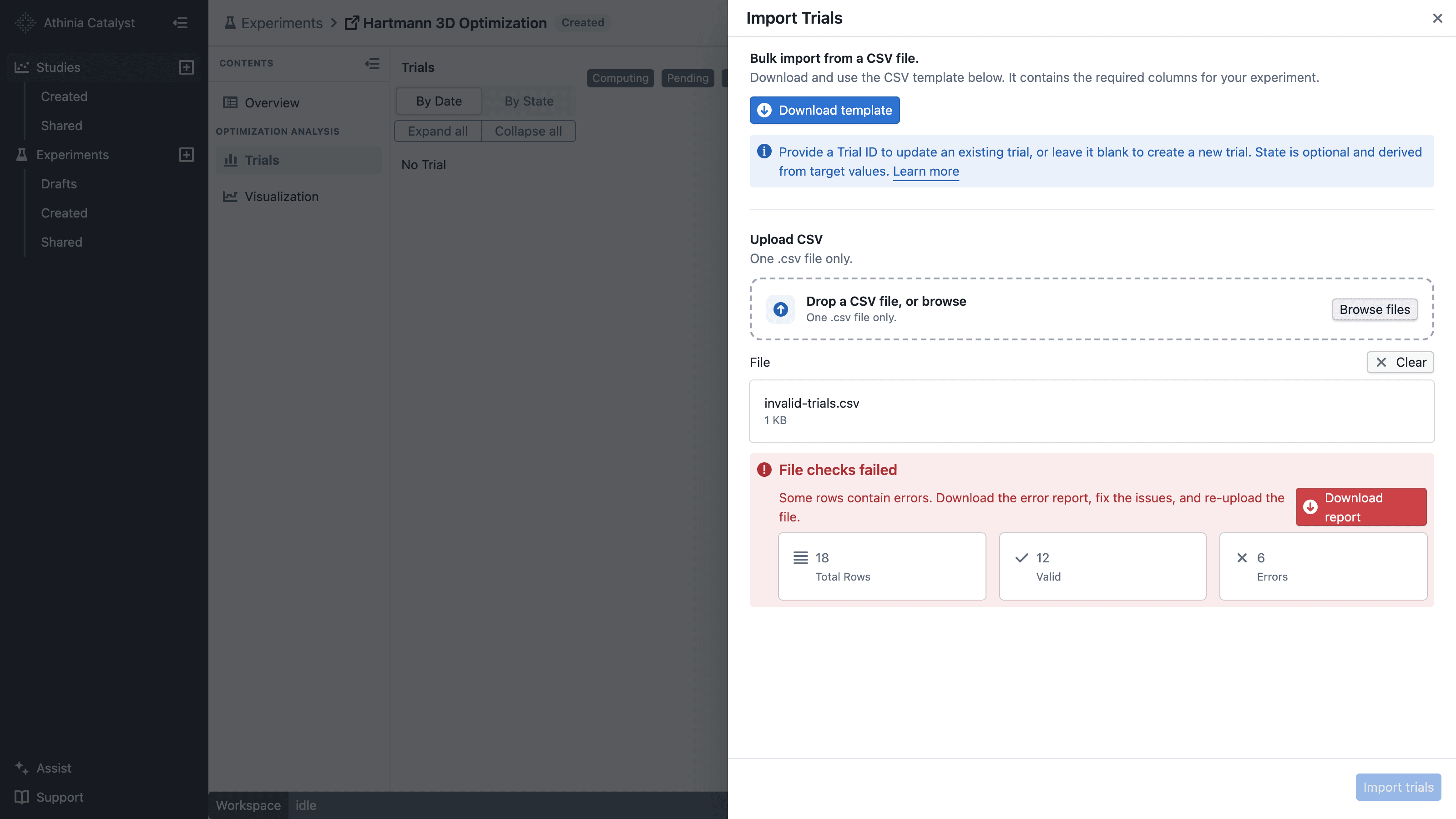
- Click Download report.
- Fix the errors listed in the
Errorscolumn. - Re-upload the corrected CSV. The
Error CountandErrorscolumns are ignored.
Rows where every parameter and target is blank or NaN are ignored. Upload is disabled if no trial data remains.
Common errors:
- Missing required columns: Download a new template and keep every parameter and target header.
- Invalid Trial ID: Use an ID from the current experiment or leave it blank to create a trial.
- Invalid State: Use one of the supported states listed above.
- State Message only allowed for FAILED or REJECTED trials: Clear the message or change the trial state.
- Required for all trials: Provide a value for every parameter.
- Value must be a number: Correct the supplied numerical parameter or target value.
CSV validation in the drawer is preliminary. Final server-side validation runs when the trials are uploaded.