Study Settings
The study edit page is available from Edit in the study detail view. It is split into four tabs: General, Columns, Column Groups, and Visibility.
General
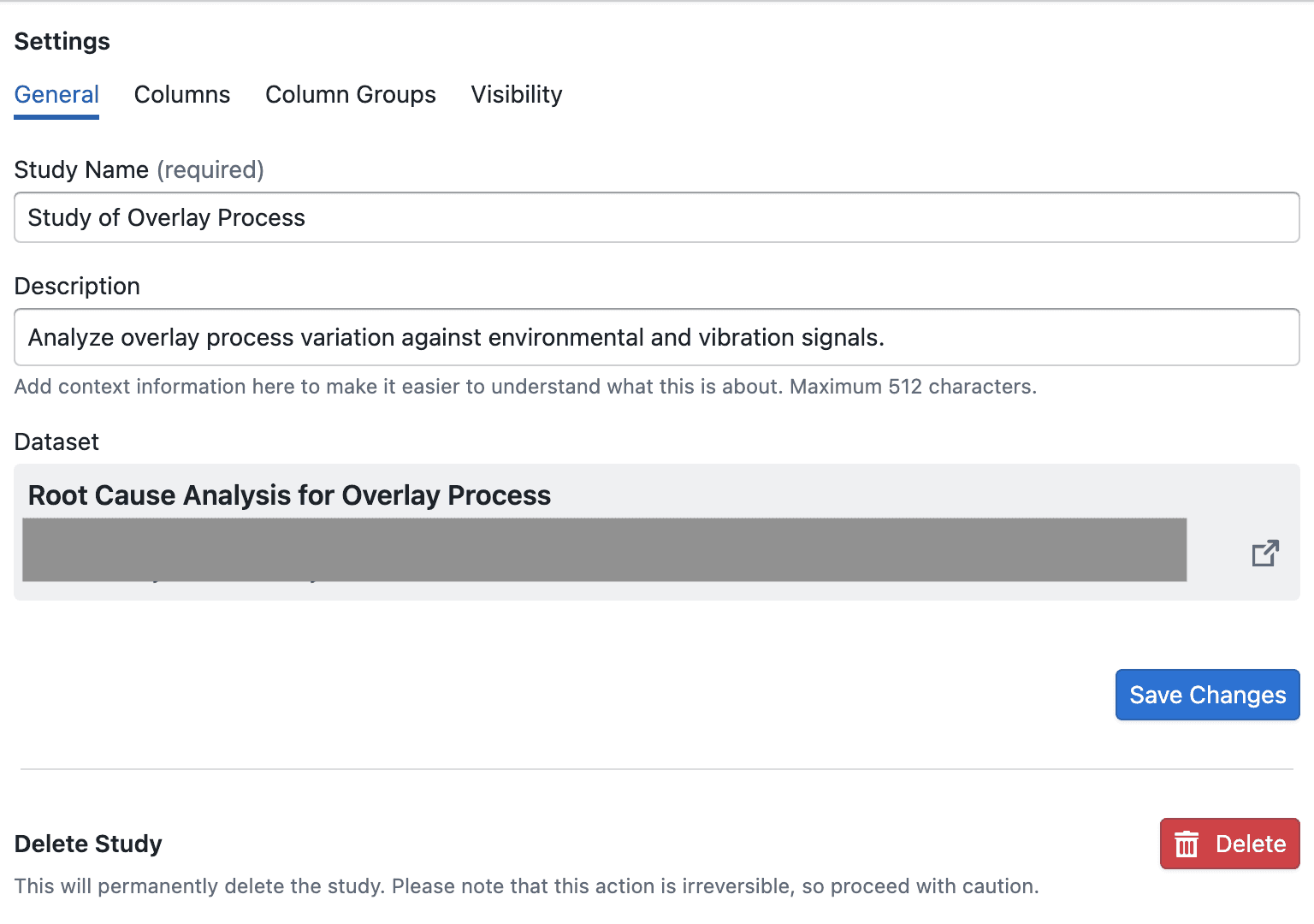
Use General to update basic study information:
- Change the Study Name
- Update the Description
- Review the linked dataset and open its dataset preview
- Save changes
The same tab also includes Delete Study. Deleting a study is permanent and cannot be undone, but it does not delete the underlying dataset.
Columns
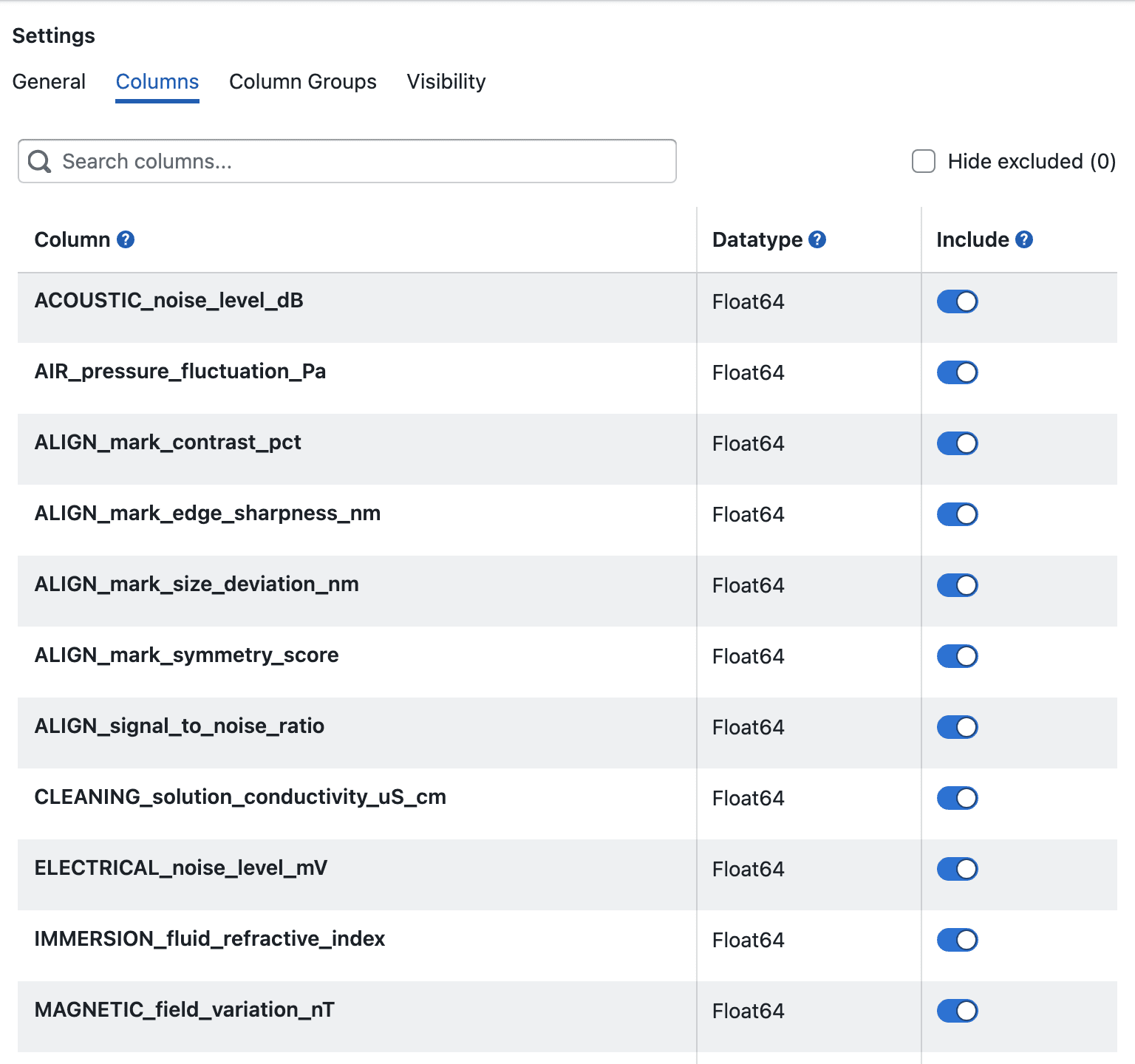
Use Columns to manage how dataset columns appear in the study:
- Search columns by original name or display name
- Update a column's Display Name
- Include or exclude a column from the study
- Hide excluded columns from the table while reviewing the list
- View each column's detected datatype
Notes:
- Display names must be valid and unique within the study
- Renaming affects how the column is shown in the UI; it does not rename the raw dataset column
- Excluding a column hides it from study views rather than deleting it from the dataset
Column Groups
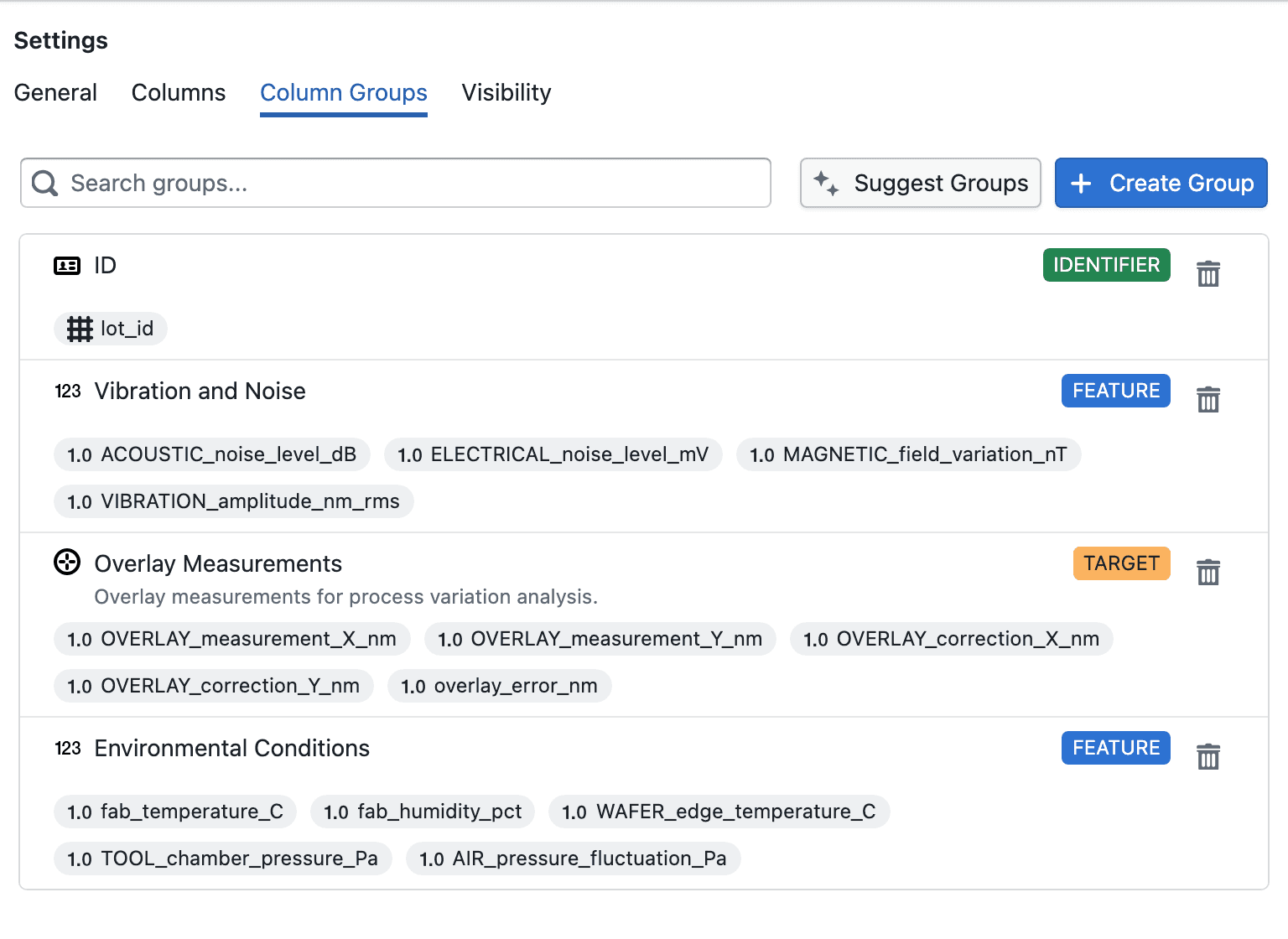
Use Column Groups to organize related columns:
- Search existing groups
- Create new groups
- Edit existing groups
- Delete groups
- Assign columns to each group
Available group types include:
- Targets
- Features
- ID
- Fold Group
What each group type means:
- Targets are the outcomes you want to predict or analyze, such as yield, defect rate, quality score, or cycle time. You can create multiple target groups when you want to organize different outcomes separately.
- Features are the input columns used to explain or predict your targets, such as process parameters, environmental signals, material properties, or timestamps. You can create multiple feature groups to organize related inputs by topic or domain.
- ID is the unique identifier for each record, such as a wafer ID, batch ID, serial number, or measurement ID. ID columns help distinguish rows and trace results back to the source data, but they are not used as training features.
- Fold Group keeps related rows together during train/test splitting, such as repeated measurements from the same wafer, lot, patient, or sensor. This helps prevent data leakage by ensuring related rows stay in the same fold.
Group behavior depends on type:
- ID and Fold Group allow only a single selected column
- Targets and Features can contain multiple columns
- Customizable groups can also store an icon, color, group name, and description
Validation rules:
- Group names must be valid and unique within the same group type
- Each group must contain at least one column
Visibility

Use Visibility to publish the study:
- Turn on the publish switch
- Confirm publishing in the dialog
- Copy the published study link after publishing
Publishing makes the study available to other users who already have access to the dataset. Publishing cannot be undone from this page.